AI Productivity Tools for Teachers: Safe Weekly Workflow
Best AI productivity tools for teachers are the ones that cut prep and communication time while keeping lesson quality steady and student data protected. A smart pick comes from scoring tools on time saved, quality risk, data exposure risk, policy fit, and setup friction, then using a repeatable weekly workflow. You’ll move faster without guessing.
Imagine this scenario: it’s Sunday night, your lesson plan is half-finished, you still need a differentiated version for two groups, and three parent emails are waiting. You don’t need “more apps.” You need one dependable loop you can run every week that turns standards, constraints, and your own teaching voice into usable materials, without letting an AI tool quietly raise your risk.
This is where most generic lists fall apart. They name tools, but they don’t tell you what to paste, what to redact, what to verify, and when to skip AI entirely. You’ll use a teacher-specific scorecard and five copy-paste mini-workflows so you can set this up in under 30 minutes and keep it consistent all year. Disclosure: this site may earn affiliate commissions from some links, at no extra cost to you.
What are the best AI productivity tools for teachers right now?
The best tools are the ones that match your weekly workload, not the ones with the longest feature list. For most teachers, that means one planning tool, one drafting tool for materials, one feedback assistant, one email helper, and one classroom-communication aid that supports clarity and consistency.
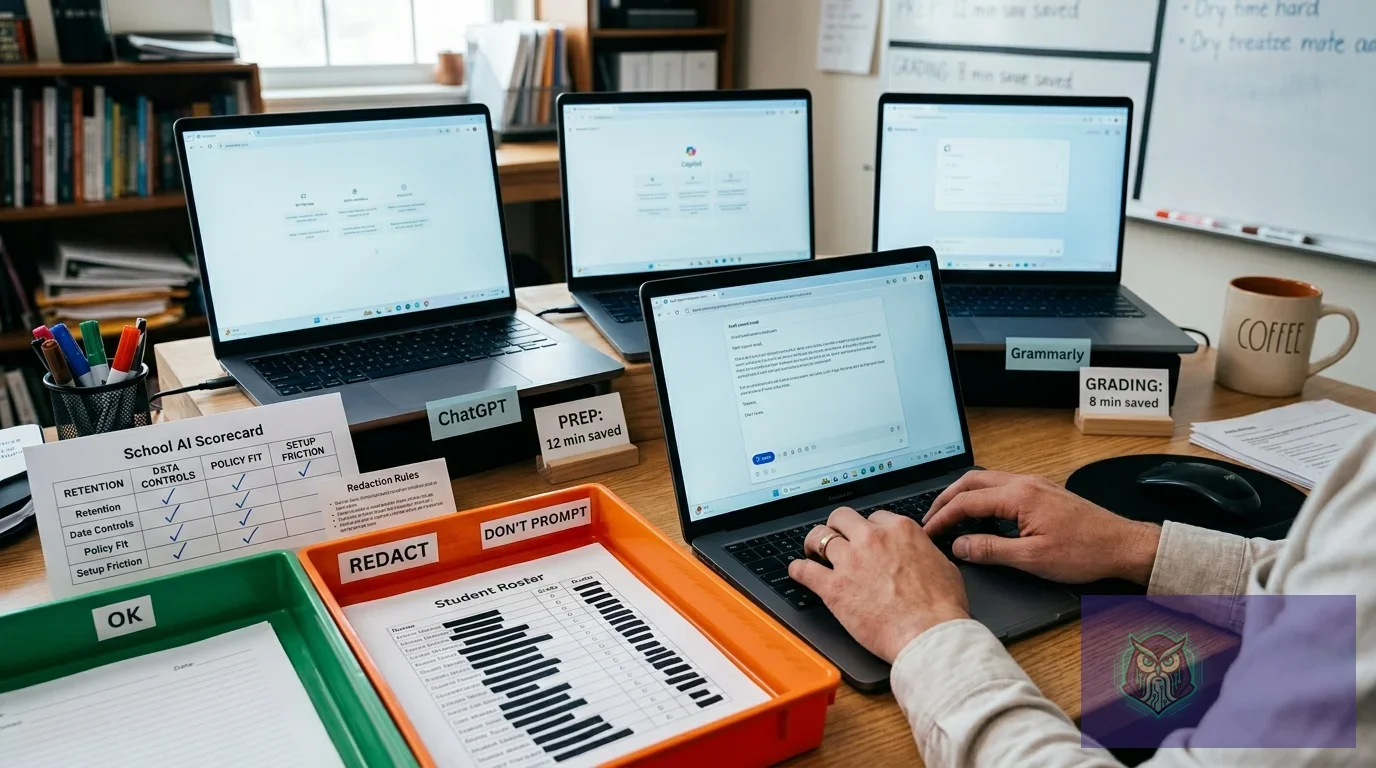
Use this scorecard to choose a stack that fits your constraints. Time saved is a realistic weekly range for common tasks like lesson outlining, worksheet drafting, rubric comments, and parent emails. Risk scores reflect how likely a tool is to push you into errors or policy trouble if you use it casually.
| Tool (category) | Time saved/week | Lesson-quality risk | Student-data exposure risk | Admin/policy fit | Setup friction |
|---|---|---|---|---|---|
| General chat assistant (planning + drafting) | High (2–4 hours) | Medium (can hallucinate) | Medium–High (depends on settings) | Medium (needs guardrails) | Low (start fast) |
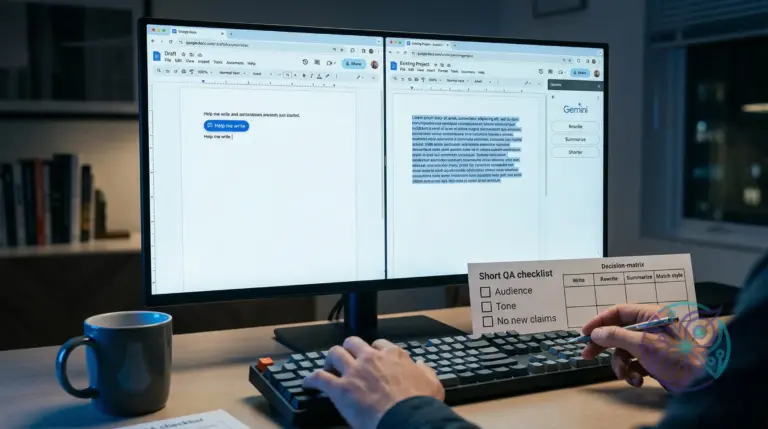
| Document/slide assistant inside your school suite | Medium (1–3 hours) | Low–Medium (more constrained) | Low–Medium (suite policies help) | High (easier to justify) | Low (already installed) |
| Rubric + feedback assistant (comment drafting) | High (2–5 hours) | Medium (tone + accuracy checks) | High (grading context is sensitive) | Medium (needs strict rules) | Medium (templates required) |
| Email draft assistant (parent + staff comms) | Medium (1–2 hours) | Low (you control final voice) | Medium (email content is sensitive) | High (clear use case) | Low (prompts + snippets) |
| Classroom communication helper (leveling + translation + clarity) | Medium (1–2 hours) | Low–Medium (meaning drift possible) | Medium (depends on inputs) | Medium–High (if redaction is solid) | Medium (style rules) |
Direct recommendation: start with the document/slide assistant in your school suite if your district is strict, then add a general chat assistant only after you’ve written redaction rules and verification steps. If you’re choosing a general model-based tool, compare plan and workspace controls before you adopt it; the differences can change what’s safe to paste. This breakdown of plan boundaries helps you think clearly about that: ChatGPT Plus vs Business vs Enterprise: which plan fits 2026 workflows.
Skip this when you can’t commit to a repeatable workflow. Without a fixed process, AI tends to create more review work than it saves, especially when you’re tired and tempted to accept outputs too quickly.
Which AI tools are safest for student data and school use?
School-safe AI use means you treat student information like you would in an email to the wrong recipient: if it would be a problem there, it’s a problem in an AI prompt. Your safest setup is a tool with clear data controls, clear retention terms, and an admin-friendly story you can explain in one sentence.
Start by learning the vendor’s default behavior for data usage and retention, then align it to your policy. OpenAI’s published guidance on data usage and controls is a good example of the kind of clarity you should demand from any vendor; use it as a benchmark when you evaluate tools: OpenAI enterprise privacy and data usage policies. Use these concrete redaction rules before you paste anything into an AI tool:
- Never paste student names, student ID numbers, email addresses, phone numbers, or home addresses.
- Never paste IEP details, accommodation notes, medical information, or discipline records.
- Never paste a full gradebook export, even if you remove names; patterns can still identify students in small classes.
- Replace any student reference with a role label like “Student A” plus only the details that matter for the task (for example: reading level range, English learner stage, or assignment completion status).
- If you need context, summarize it yourself in one paragraph and remove dates, unique incidents, and anything a parent would recognize.
This can go wrong fast when you paste raw student reflections into a chat tool to get “faster comments.” The output might look polished, but the input itself is the bigger problem. A safer pattern is to paste your rubric, your learning targets, and anonymized excerpts that you rewrite as a composite sample.
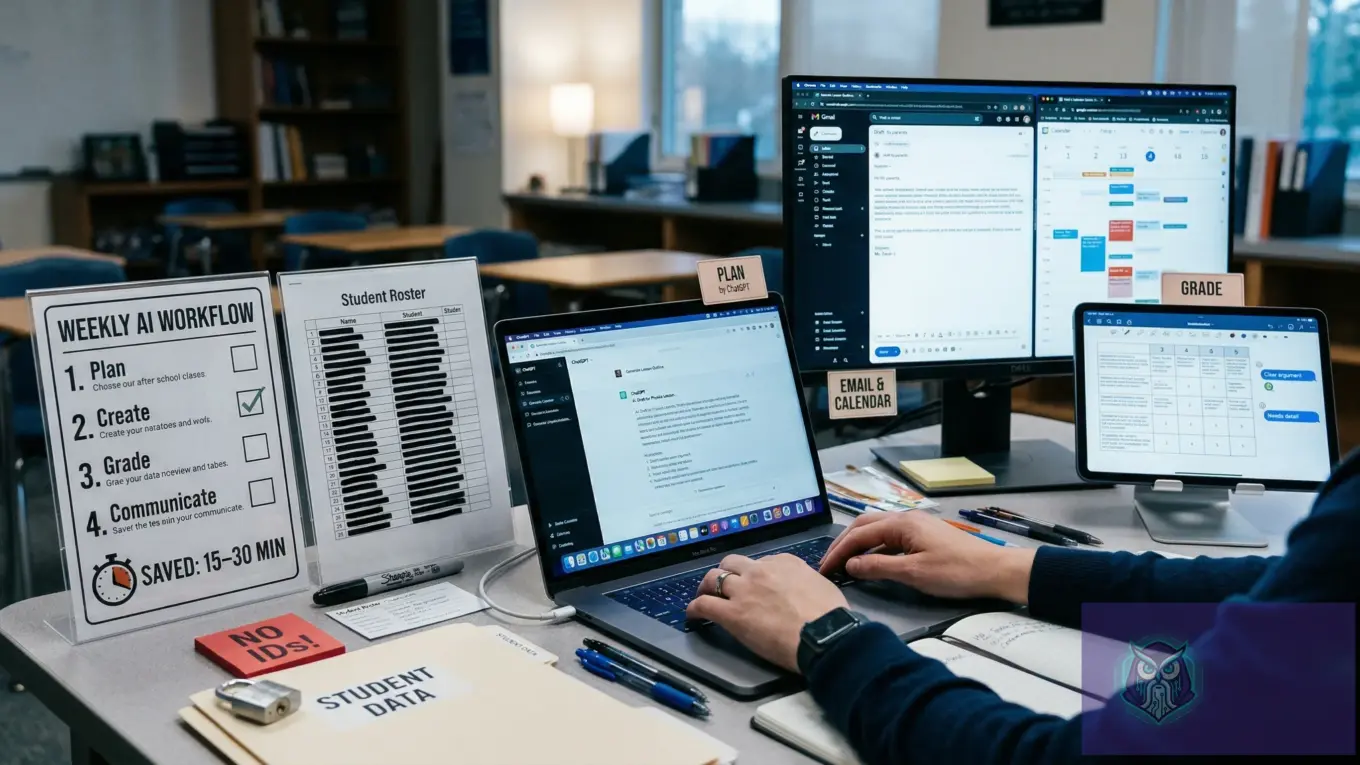
Practical, school-safe workflow sequence: Plan → Draft → Differentiate → Assess → Communicate. Keep every step content-only, never student-identifying. When you need grading support, use the tool to draft comment stems and evidence language, then attach them to your own observations inside your LMS or gradebook.
Disqualifier for any tool: skip it if the vendor can’t explain data retention and training defaults in plain language. If you can’t explain where your prompts are stored and who can access them, you can’t defend the workflow when a parent or administrator asks.
How can teachers use AI to plan lessons faster without lowering quality?
Fast planning stays high quality when you give AI tight constraints, then you choose from options instead of accepting a single plan. The goal isn’t originality from a model; the goal is a clean draft you can shape with your standards, your pacing, and your classroom reality.
Build your prompts around what “helpful” means in practice: a specific audience, real constraints, and a clear outcome. Google’s guidance on people-first, helpful content maps well to teacher materials too, since it rewards specificity and real-world usefulness over generic text: Google’s guidance on helpful, reliable, people-first content.
AI prompt templates for teachers work best when you standardize your inputs and outputs for the same weekly tasks. Mini-workflow 1: General chat assistant (planning + drafting)
- Input: state standard or unit objective + time limit + materials you already have + non-negotiables (for example: “no videos,” “hands-on lab,” “ELA supports”). Output: three lesson outlines with a 5-minute hook, guided practice, independent work, and exit ticket.
- Input: choose one outline + class profile summary (no identifiers) + common misconceptions. Output: a teacher script for key moments and a list of checks for understanding.
- Input: same outline + two differentiation constraints (below-level and extension). Output: two modified versions with adjusted reading load and scaffolds.
- Input: your final outline + rubric categories. Output: a simple success criteria list students can understand.
- Input: that criteria list + a short “family update” requirement. Output: a parent-facing summary in a calm tone, translated if needed, with dates removed.
Mini-workflow 2: Document/slide assistant inside your school suite
- Input: paste your outline bullets into a document + ask for a one-page handout structure. Output: headings, student directions, and a clean layout.
- Input: handout directions + required vocabulary. Output: a word bank and sentence frames that match your directions.
- Input: the same content + request for a slide deck outline. Output: slide titles, checks for understanding, and an exit-ticket slide.
- Input: your pacing calendar. Output: a weekly checklist you can paste into your LMS without adding student data.
- Input: a version for substitutes with classroom routines and emergency steps. Output: a sub plan that stays aligned to your lesson.
For a concrete example, you can draft a standards-aligned lesson outline in a general chat tool like ChatGPT, then move the final version into Google Docs for formatting and distribution. Treat the model output like a smart rough draft, not a finished plan, and you’ll keep your voice intact while saving the slowest part: the blank page.
Disqualifier for planning tools: skip AI for lessons that depend on precise facts you can’t quickly verify, like specialized science safety guidance or time-sensitive policy details. Use it for structure, differentiation patterns, and clarity, then you supply the truth checks.
What’s the best AI workflow for grading, feedback, and rubric-based comments?
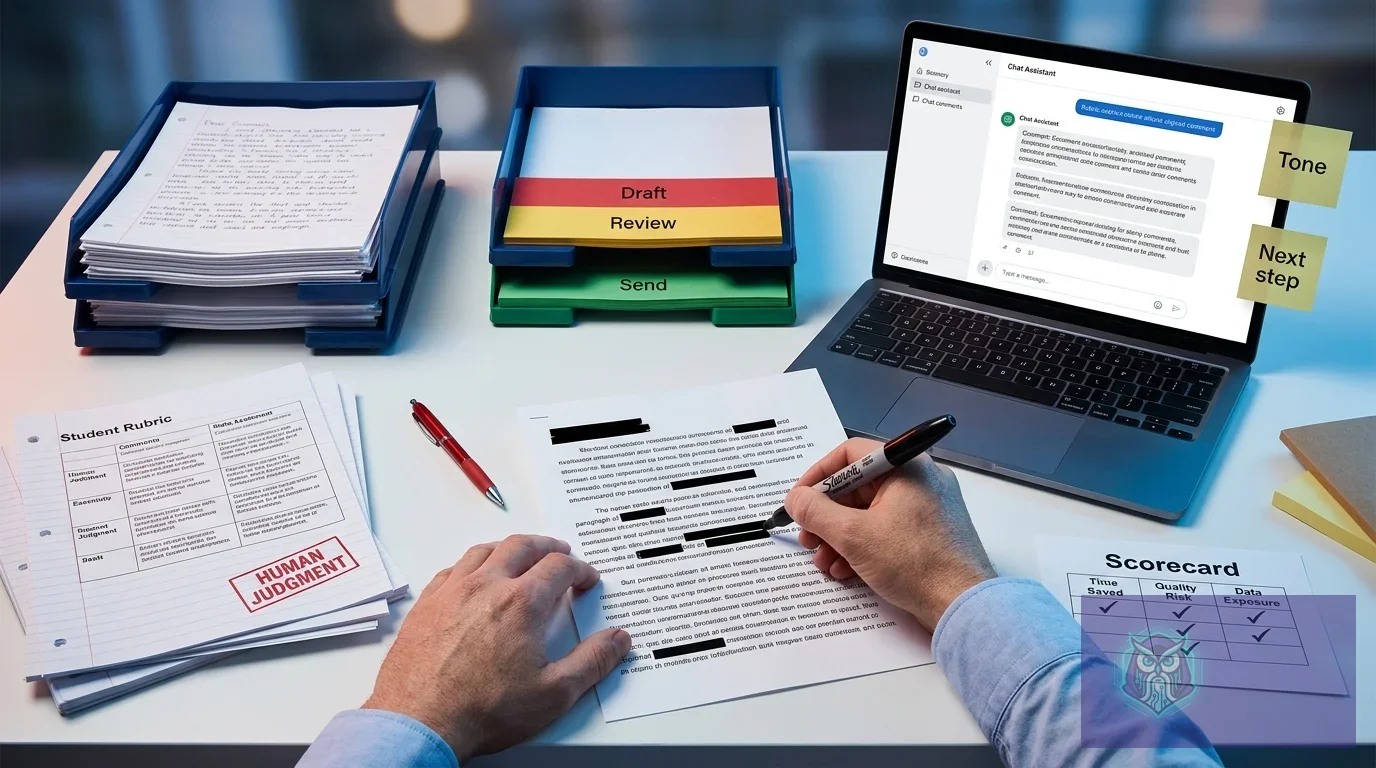
The best workflow uses AI to draft comment language, not to decide grades. You keep judgment in your hands, and you use AI to reduce repetition: rubric-aligned phrasing, next-step suggestions, and tone control so students get feedback they can act on.
Think of feedback as a template system with flexible slots. When you prepare the right inputs once, you can reuse them weekly with small edits. If you want a broader model-selection lens for this kind of structured, repeated work, this overview helps you think in terms of limits and workflow fit: limits by plan and workflow picks for 2026. Mini-workflow 3: Rubric + feedback assistant (comment drafting)
- Input: your rubric categories + 4 performance levels + one “what good looks like” example per category. Output: a bank of short, neutral comment stems for each level.
- Input: a student work summary you write in 3–5 bullets (no quotes that reveal identity) + selected level per category. Output: a draft comment using your stems, plus one specific next step per category.
- Input: your school’s tone constraints (for example: “no sarcasm,” “strength-first,” “plain language”). Output: a revised comment that stays supportive and actionable.
- Input: the same comment + request for a student conference script. Output: three questions and one goal-setting statement you can use in two minutes.
- Input: the same rubric + common misconceptions list. Output: a short reteach mini-lesson plan you can run as a warm-up.
Mini-workflow 4: Classroom communication helper (leveling + translation + clarity)
- Input: your assignment directions + required constraints (due date, format, what to submit). Output: a “plain language” version for students who need simplified directions.
- Input: the same directions + request for a bilingual version. Output: a translation with a short glossary for tricky terms.
- Input: your rubric language. Output: a student-friendly checklist that mirrors the rubric without legalistic wording.
- Input: your feedback comment. Output: a shorter version that fits in an LMS field limit without losing meaning.
- Input: a classroom announcement. Output: three versions: student-facing, parent-facing, and staff-facing.
The first time you try this, the biggest win often isn’t “grading faster,” it’s writing clearer rubrics and comment stems once, then reusing them. You’ll still read student work carefully, but you won’t waste time rewriting the same sentence twenty times.
Disqualifier for grading and feedback tools: skip AI when feedback needs to reference personal circumstances, sensitive behavior, or any detail tied to protected student information. Keep those communications fully human, written from scratch, or routed through approved channels.
What should teachers avoid when using AI for classroom work?
Avoiding mistakes with AI comes down to two habits: don’t paste risky inputs, and don’t trust outputs without a quick verification step. Most problems show up when AI gets used at the end of a long day, when you want the tool to be the decision-maker.
Make your content snippet-friendly on purpose when you share instructions with students and families. Concise, structured answers improve clarity for humans and search tools, and they also reduce misunderstandings in your own LMS posts. These two references explain why tight Q&A structure and scannable formatting work so well: featured snippet optimization guidelines and People Also Ask optimization guide. Use these five “don’t do this” guardrails, one per tool category:
- General chat assistant: don’t ask it to grade or detect plagiarism. Use it to draft rubrics, comment stems, and lesson structures, then you decide.
- Document/slide assistant: don’t accept auto-generated citations or “facts” for content-heavy topics without checking a trusted source. Treat it as layout and drafting help.
- Rubric + feedback assistant: don’t feed it raw student work with identifiers. Summarize the evidence yourself, then let it format language around that evidence.
- Email draft assistant: don’t paste entire email threads. Provide a clean summary plus the exact outcome you want, then review tone before you send.
- Communication helper: don’t assume translations preserve meaning. Compare key terms, keep instructions simple, and ask for a glossary to reduce drift.
Mini-workflow 5: Email draft assistant (parent + staff comms)
- Input: situation summary in 4–6 bullets (no student identifiers) + the decision you already made + the tone you want. Output: a short email draft with a clear ask and a clear next step.
- Input: your policy constraints (what you can’t promise, what you must document). Output: a revised draft that avoids over-commitments.
- Input: request for two alternatives (more formal, more warm). Output: two tone options you can pick from quickly.
- Input: request for a one-sentence subject line plus a three-bullet recap at the top. Output: scannable structure for busy families.
- Input: the final draft + request for a “copy for admin” version. Output: a neutral version that documents facts without emotion.
When you’re unsure what category fits your constraints, use a quick selector like the AI Tool Finder to narrow your options by task and risk tolerance. Keep it simple: pick one tool to start, write your redaction rules, and run the same weekly sequence for two weeks before you add anything else.
Bottom-line disqualifier: skip AI for any high-stakes decision you can’t explain in writing. If you wouldn’t defend it in a conference, don’t outsource it to a model.
For a practical safety check on what web tools can store and reuse, it also helps to understand how browsers and websites handle content and permissions at a high level. MDN’s overview of web privacy concepts is a reliable starting point: MDN Web Docs on privacy.
Pick two categories to start this week: a planning/drafting tool plus an email helper, then write your redaction rules on a sticky note and follow Plan → Draft → Differentiate → Assess → Communicate for one unit. Once that loop feels stable, add the feedback workflow and track your time saved honestly so you keep the best AI productivity tools for teachers tied to real classroom wins.
FAQ
Can teachers use AI without violating student privacy?
Yes—if you never paste identifying student information and you choose tools with clear data controls and retention terms. Keep grades and sensitive context inside your approved school systems.
What’s the safest input to paste into an AI tool for lesson planning?
Paste standards, learning targets, time constraints, materials, and non-negotiables, plus an anonymized class-profile summary. Leave out names, accommodation details, discipline history, and unique incident descriptions.
Should AI write rubric comments for grading?
AI can draft rubric-aligned comment language, but it shouldn’t decide grades. You provide the evidence summary and rubric level, then you edit for accuracy and tone.
What’s a practical use for an AI email assistant for teachers?
Use it to turn an anonymized bullet summary into a clear, calm message with a specific next step. Avoid pasting full email threads or sensitive student details.
How do you reduce hallucinations in classroom materials created with AI?
Give tight constraints (standard, grade level, allowed sources) and request an outline before a full handout. Verify factual claims against trusted references and your curriculum materials.