Android voice dictation apps 2026: pick, test, score
To choose the best android voice dictation apps 2026, pick the option that fits how you actually talk to your phone: quick messages, longer notes, or full meeting transcripts. My rule is simple: test your own audio (quiet vs. noisy, two accents, and a few jargon-heavy phrases), then score accuracy, speed, offline mode, privacy, exports, and custom terms. That gets you to a clear winner fast.
You feel the pain when you’re walking between client meetings, your hands are full, and typing turns into a typo festival. Or you’re trying to capture a sharp idea, but autocorrect “fixes” your product names into nonsense. Dictation helps—yet the wrong setup is brutal because you spend more time cleaning text than speaking.
Think of dictation as an input pipeline, not a single app choice. Your mic, your environment, and your vocabulary matter as much as the recognizer. Lock in a repeatable test and a simple workflow, and you’ll stop hunting for a “perfect” app and start getting usable text on demand.
Affiliate note: Some recommendations may use affiliate links when available, at no extra cost to you. I only suggest options I’d use in my own workflow.
What is the best voice dictation app for Android in 2026?
The best voice dictation app for Android in 2026 is the one that matches your main scenario: quick text entry, long notes, or multi-speaker transcription. If you mostly dictate into search, messages, and forms, a keyboard-based option is usually the fastest. If you’re capturing meetings, a recorder-style workflow with strong exports tends to win.
Here’s the plain definition, because marketing copy gets weird: speech recognition (automatic speech recognition) converts spoken language into written text using statistical and neural models. A neutral primer helps you spot trade-offs when vendors toss around “AI,” so you can use a general overview like speech recognition before you compare options. Your best pick typically falls into one of three buckets:
- Keyboard dictation for speed while you type: you dictate directly into any app.
- Voice recorder transcription for longer thoughts: you speak, then edit and share.
- Meeting transcription for teams: you capture speakers, add timestamps, and export to docs.
Quick shortcut: it’s not about “best overall.” It’s about fit.
| Option type | Best for | Typical trade-off | Exports you should demand |
|---|---|---|---|
| Keyboard dictation (example: Gboard voice typing) | Texts, emails, forms, search | Less control over formatting and speaker labels | Copied text, punctuation commands |
| On-device recorder transcription (example: Google Recorder) | Personal notes, lectures, solo audio | Device and language support varies | Text file, share to Docs, timestamps |
| Cloud meeting transcription (example: Otter) | Meetings, interviews, multi-speaker | Internet reliance and data retention questions | DOCX/PDF, SRT, speaker labels |
One mistake I see a lot is judging “dictation quality” from a single quiet-room test. Real life includes car noise, air conditioners, and holding the phone a foot farther away than you think. Test your voice in real conditions, then decide. If you want a quick starting point, you can also use an interactive picker like the AI Tool Finder to narrow down categories before you test.
Which Android dictation apps work offline (and which require internet)?
Offline dictation on Android means the speech-to-text runs locally on your device, so you can transcribe without a network connection. Online dictation sends audio (or features derived from it) to a server, which can improve accuracy in some cases, but it adds delay and changes the privacy story.
First, decide what “offline” needs to cover for you. If you only need it for quick replies on a plane, keyboard dictation with offline language packs might be enough. If you need offline for client recordings in secure environments, you’ll want local transcription plus local file storage, since cloud uploads can violate policy even when they’re convenient.
You can test offline behavior in two minutes: turn on airplane mode, dictate a 30-second note, then check whether you get text immediately and whether it keeps working for a full minute. Do this in a quiet room and again in a noisy café, because offline models often degrade faster in noise. Meanwhile, measure delay: start speaking, pause after a sentence, and see how long it takes to finalize the text. Small waits feel minor, but they stack up when you’re dictating 1,500 words.
Offline won’t be perfect—still, it can be the right call because it avoids upload friction and keeps you productive when your connection is shaky. If a provider hints that its engine is “Whisper-like” or “powered by open-source ASR,” expect strong accuracy for clear audio but uneven performance for rare proper nouns unless there’s contextual help. OpenAI’s own project description for Whisper is a good baseline for expectations, since it frames the model as general-purpose rather than magical: see the OpenAI Whisper (open-source) repository. To keep your evaluation repeatable, score each candidate with the same offline checklist:
- Offline language availability for your dialect
- Latency for short and long utterances
- Noise handling (fan noise, street noise, mic distance)
- Local file control (where audio and text are stored)
- Exports that don’t require an account login on another device
When offline fails, you’ll usually see one of two patterns: it silently stops transcribing, or it outputs lower-confidence text with more substitutions. Either way, your cleanup time spikes. Pick the option that keeps your correction workload low, even if raw accuracy looks similar on paper.
How accurate is Android dictation for industry jargon, and can you add a custom vocabulary?
Android dictation accuracy for industry jargon depends on whether the engine can use context, phrase hints, or custom vocabulary features. General speech models do well on common words, but they often mishear product names, acronyms, and specialized terms unless you give them a way to bias toward your domain language.
“Custom vocabulary” isn’t always a visible switch. Some apps let you add a word list, others lean on keyboard dictionaries, and some only improve after repeated corrections. The real question is practical: can you reliably get “Shopify,” “HubSpot,” or “DaVinci Resolve” without fixing it five times? Imagine you run a boutique photo studio that sells prints and talks about “light falloff,” “color grading,” and “RAW”—your dictation setup has to stop turning those into everyday words that technically fit but are totally wrong.
Research on contextual techniques backs up what you see in real testing. Domain prompts and contextual biasing can steer recognition toward specific vocabulary without full retraining, which is helpful when your term list is stable but uncommon. If you want the technical grounding behind that idea, the paper on contextual biasing for domain-specific vocabulary in Whisper is a solid reference for why context improves recognition in a targeted way.
Mini case study: A three-person real estate team in Phoenix recorded about 12 client calls per week, averaging 18 minutes each, and they relied on manual notes. Their biggest pain point was jargon and proper nouns: neighborhood names, lender acronyms, and property codes, plus two agents with different accents. They created a shared phrase list of 120 terms (subdivisions, lender names, and common abbreviations), then chose a dictation workflow that supported consistent phrase hints and quick correction. Within four weeks, their editing time dropped from about 25 minutes per call to 10 minutes, and their missed follow-ups fell from roughly 9% to 3% because the transcripts were searchable and consistent. Use this benchmark to test jargon in a way that matches real work:
- Create two 60-second scripts: one general, one jargon-heavy.
- Record both scripts with two speakers (two accents if possible).
- Run them in three conditions: quiet room, office noise, and car cabin.
- Score word error rate by counting substitutions and deletions on your top 30 terms.
The most effective “custom vocabulary” workaround is pairing the recognizer with your writing environment. For example, dictating into a notes app that learns your spelling corrections can reduce repeat errors, since it feeds the same corrected forms back into your next session. Then again, if you need an ai dictation app with custom vocabulary as a formal feature for compliance or scale, demand a documented method for phrase hints and a way to export your vocabulary list.
What’s the best free dictation app for Android (and what are the limits)?
The best free dictation app for Android is the one that lets you dictate where you already write, with predictable limits and no surprise paywalls. Free options can be great for short-form input, but they often cap meeting minutes, exports, or advanced features like speaker labels and searchable archives.
When you evaluate best free text dictation software, focus on the real costs: cleanup time, missing exports, and lock-in. If you can’t export a plain text file or share to your preferred storage, your “free” setup can become expensive because you waste time copying and polishing. On the flip side, a free tier can be perfect if your goal is speed for messages and basic drafts, since you’ll get most of the upside with minimal setup.
What works best is setting a strict free-tier pass/fail rubric before you get attached to anything. Use this list and stop the trial if any item fails:
- Works inside at least two apps you use daily (email + notes, for example)
- Exports without friction (share sheet, plain text, or doc format)
- Clear privacy statement and retention controls
- Consistent punctuation handling, including commands
- Doesn’t degrade badly in moderate noise
For a concrete example, picture this: you dictate quick product descriptions into Google Docs on Android, then you paste the polished version into Shopify from your laptop later. That setup can be nearly free, and it’s fast, but you’ll still need a jargon test so “SKU,” “matte,” and brand names don’t get mangled. If you want a broader view of voice tools beyond dictation, learn how creators test voice outputs in best free text-to-speech tools, since many of the same habits apply (delay, noise, and consistency).
Keep your wording precise when you search. “Best dictation software 2026” can mean keyboards, meeting transcription, or accessibility-focused voice control. “Dictation software” can also mean desktop tools, but your Android constraints are different: battery, mic quality, and background noise dominate. If a free plan doesn’t let you validate those constraints, move on.

How do you choose a dictation app for meetings vs. coding vs. everyday typing?
Choosing dictation for meetings vs. coding vs. everyday typing comes down to structure and tolerance for errors. Everyday typing needs fast turnaround and clean punctuation. Meetings need speaker separation, timestamps, and reliable exports. Coding dictation needs precise symbols and a way to avoid destructive substitutions.
For everyday typing, you want something that feels invisible: you speak, text appears, you correct once, and you’re done. Keep it simple. Use a keyboard dictation mode, dictate in short sentences, and pause for finalization. Since run-on text is the #1 cleanup trap, speaking punctuation out loud helps more than people expect.
For meetings, prioritize capture quality. Use an external mic when you can, and place the phone closer to the speakers, because distance is the enemy. In client audits, a $30 wired lav mic often reduces transcription errors more than switching apps, because the audio gets cleaner. Plus, you’ll want exports like DOCX, PDF, or subtitle formats, since those plug into your notes and content pipeline later.
Coding dictation is a special case. I’ll be honest: it’s rarely a good default input method for most developers, since symbol density and exact casing make mistakes painful. Still, if you dictate code comments, commit messages, or short snippets while you’re away from a keyboard, you can make it workable by dictating in chunks and confirming after each line. Unless your engine supports specialized vocabulary and symbol commands, use dictation for prose around code, not the code itself. Carefully.
When you want to turn dictation into a content workflow, connect it to your broader AI stack. If you transcribe meetings and then summarize into a deck, you’ll get value from transcript quality. A related read is AI presentation makers, since many teams feed transcripts into slide builders and meeting recap tools.
A repeatable Android dictation benchmark and scoring rubric you can use
A repeatable Android dictation benchmark is a small test suite you can run in under an hour that reflects your real audio, vocabulary, and output needs. The goal is not to crown a universal winner, but to pick the best artificial intelligence dictation software for your conditions and constraints.
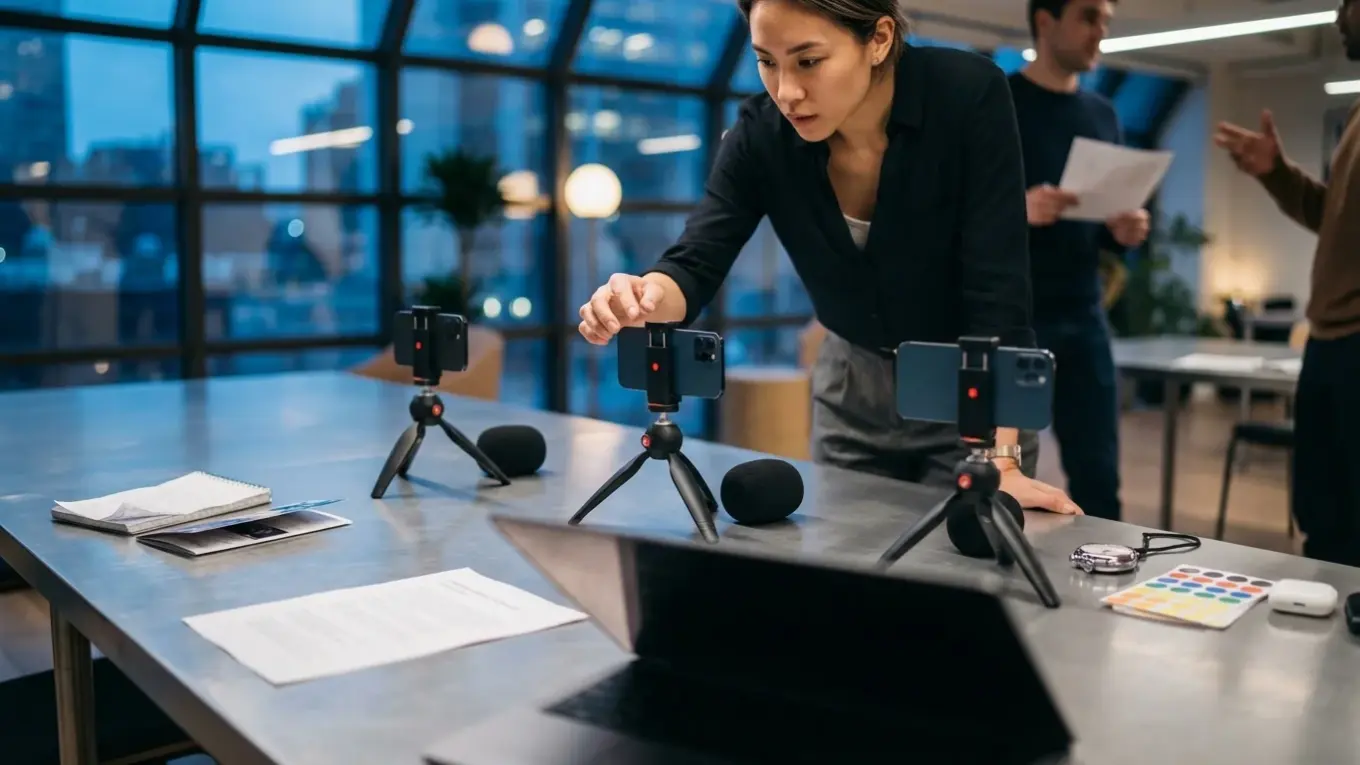
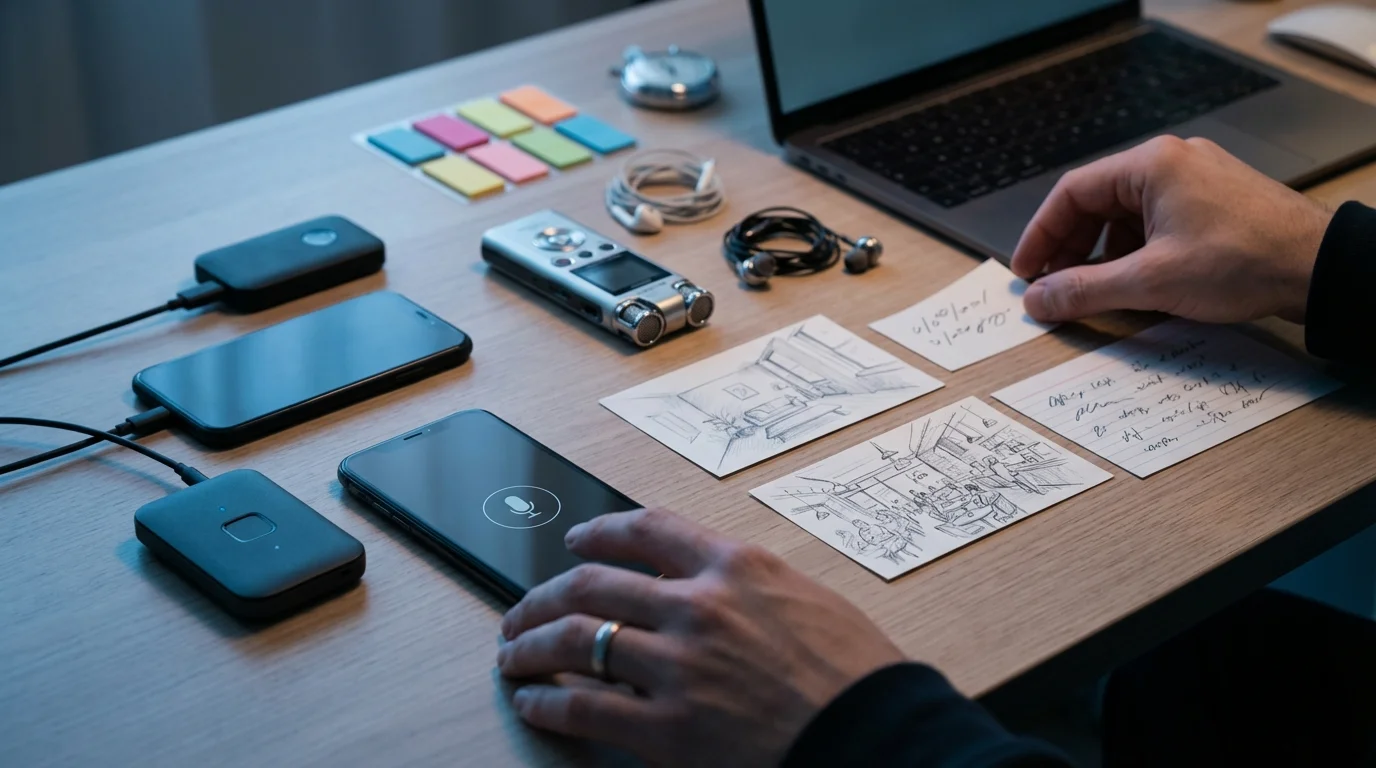
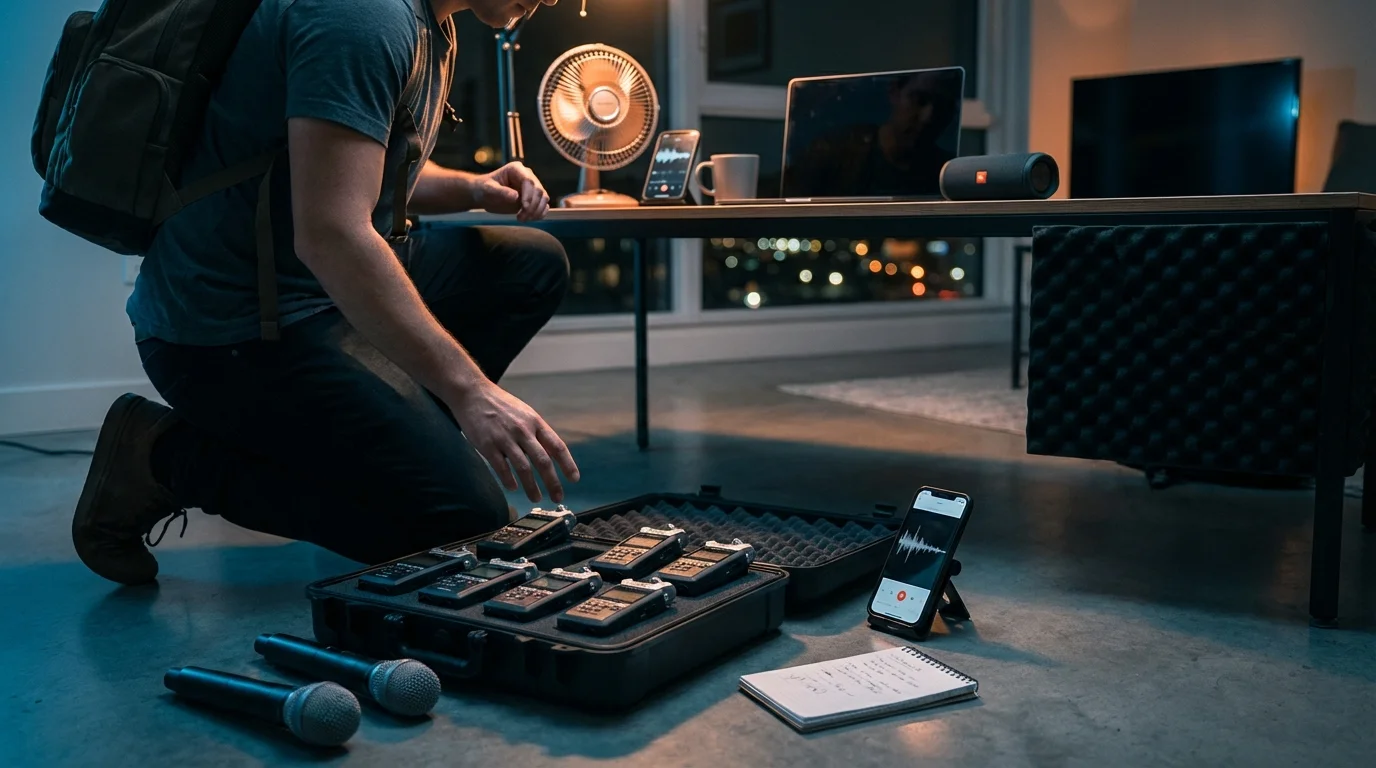
Do this now: create a benchmark folder with six recordings. You’ll record two accents (or two speakers with different cadence), three audio conditions (quiet, office noise, and car cabin), and two scripts (general and jargon-heavy). Keep each clip around 60 seconds so scoring stays realistic and you don’t burn time.
Then score each candidate with a consistent rubric. Use a 0–5 scale for each category, then weight the categories based on the job. A sales team may weight exports and speaker labels higher, while a solo creator may weight speed and offline support higher. Here’s a rubric you can reuse:
- Accuracy: count substitutions, deletions, and punctuation mistakes on a fixed transcript.
- Latency: time to finalize text after you stop speaking.
- Offline capability: works in airplane mode with acceptable quality.
- Custom vocabulary handling: supports phrase hints, learns corrections, or allows a word list.
- Privacy and retention: clear controls for storage, deletion, and sharing.
- Export formats: plain text, document formats, and subtitles when needed.
When you try this approach, results can shift because the “best” option changes based on noise and jargon. One app may be great in quiet rooms but fall apart in a car. Another may be slower, yet it produces cleaner proper nouns and needs fewer edits. That difference matters, because editing is the hidden cost of dictation.
If you want to understand why many tools behave similarly, it’s often because they share underlying techniques or models. Whisper is a common reference point in modern ASR discussions, and its project page lays out its general-purpose scope and limits, which helps you set realistic expectations when apps claim “human-level” transcription. See the Whisper repository for that baseline, then validate with your benchmark instead of marketing copy.
“Whisper is a general-purpose speech recognition model.” — OpenAI, Whisper project description
One detail that improves your benchmark is a consistent microphone position. Keep the phone the same distance from your mouth, and avoid pointing it at a fan. Small shifts in mic angle can change results more than switching recognizers, especially with sibilants and plosives.
“Speech recognition is an interdisciplinary subfield of computational linguistics that develops methodologies and technologies that enable the recognition and translation of spoken language into text.” — Wikipedia, Speech recognition overview
After you score your top two, run a real-life trial: dictate three messages, one long note, and one meeting recap in a single day. If your correction time stays low and your exports fit your workflow, you’ve found your winner for best android voice dictation apps 2026. If not, reweight your rubric and try the next option.
For practical guidance on why audio and performance matter on the web, you can also review web.dev performance guidance, since many teams publish transcripts and captions and then wonder why pages slow down.
Pick two candidates, run the six-clip benchmark, and choose the one that keeps your editing workload lowest under your noisiest real conditions. You’ll end up with a scoring sheet you can reuse whenever an app updates its model. If you’re torn between categories, I’d default to keyboard dictation for everyday typing and add a recorder workflow only when you truly need meeting-grade exports.
FAQ
How can you improve dictation accuracy on Android right away?
Speak in shorter sentences, pause to let the text finalize, and keep a consistent mic distance. Reduce background noise and avoid dictating from across the room, since cleaner audio often improves results more than switching apps.
Is offline dictation more private than cloud dictation?
Offline dictation can reduce data exposure because it doesn’t need to send audio to a server. Privacy still depends on your device settings, app permissions, and whether the app stores audio or transcripts locally.
What export formats matter most for meeting transcripts?
Plain text and a document format (like DOCX or PDF) cover most workflows, while SRT helps for captions and video. For team sharing, speaker labels and timestamps are often as valuable as the raw text.
Can Android dictation handle medical, legal, or technical jargon?
It can, but accuracy depends on context and whether the system supports custom vocabulary or phrase hints. For domain-heavy work, test with a jargon script and track how often your top terms are substituted or dropped.
What’s a realistic way to compare dictation software in 2026?
Record the same scripts across quiet, office-noise, and car-noise conditions, then score accuracy and latency consistently. A repeatable benchmark beats one-off impressions and helps you choose the best dictation software 2026 for your use case.