
Free ChatGPT Plus Alternative 2026: o3, Limits, Workflow
I’ll be honest: a free ChatGPT Plus alternative in 2026 is rarely a single app. In my experience, the most reliable setup is combining a free suite-native helper for high-volume writing with a paid reasoning option for last-pass accuracy. Otherwise, limits, feature access, or quality drift will stall your delivery. Constraints and model availability vary by tier, region, and demand. Because of this, you need a system built for caps.
You usually feel the pain at the worst moment. Your draft is close, your guidelines are clear, and you just need two more revision passes to nail the tone. Then again, the chat slows down, a feature grays out, or you hit a message cap. Suddenly, your “quick finish” turns into waiting for a reset window. That’s exactly why searches for these alternatives spike mid-project, not on a calm Tuesday.
Affiliate note: Some links on this site may be affiliate links. That doesn’t change what I recommend; it only helps fund the research and writing.
What should drive your decision for a free ChatGPT Plus alternative in 2026?
Your choice really comes down to one criterion. Are you paying to prevent expensive mistakes, or are you paying to avoid workflow friction? If an error costs you money, trust, or compliance trouble, prioritize reasoning strength and repeatable constraint-following. But if your main headache is copying, pasting, and moving text between apps, prioritize a no-cost helper that lives right inside your docs and email.
What actually works for me is separating tasks into three lanes and picking the best solution per lane. Lane one is long-context intake (reading thick PDFs, meeting notes, policy docs, or client briefs). Lane two is drafting (turning that intake into a usable doc, email, script, or outline). Lane three is precision edits (tightening claims, checking constraints, and making “send” safe). Trying to do all three in one chat session is exactly what triggers mid-project drama.
I use a simple rule here. If you’d feel sick sending a document with one wrong number, keep a premium tier in the mix. Even though free options are fine for routine wording, internal notes, or early-stage drafts, you’ll get more stability by distributing the workload across different ecosystems.
- Choose paid reasoning when constraints matter (policy language, legal-adjacent copy, pricing pages, high-stakes outreach).
- Choose free suite-native when steps matter (summaries, drafting inside Docs/Word, inbox-to-doc workflows).
- Choose a writing-first editor when voice and clarity matter more than feature depth (short-form marketing, scripts, landing-page tone passes).
If you want a quick filter without guessing, use an AI tool finder to sort by tasks like long-document analysis, email drafting, and editing.
What is OpenAI o3 in 2026, and what is it best for?
OpenAI o3 is a reasoning-first model designed for tasks where following strict rules matters more than fast, “good enough” output. It tends to hold structure better across longer, complex assignments. Imagine you have to format a policy-style document, a multi-step checklist, or client copy that must match a rigid brief. That is where o3 shines.
Still, o3 only pays off when you provide clean inputs and refuse to let it guess. That means pasting the exact source text you’re relying on, stating your assumptions, and forcing a short “unknowns” list before it gives recommendations. Unless you do that, you can still get confident-sounding mistakes. The risk spikes heavily when you ask the AI to fill missing facts from memory.
Since tier details change over time, use vendor pages as the source of truth instead of screenshots or social posts. Start with OpenAI’s official pricing pages, then confirm what your account actually shows in the model picker for your region and workspace. OpenAI’s public pricing page is the cleanest baseline: ChatGPT pricing. For a practical breakdown focused on o3 access decisions, this internal guide helps map use cases to trade-offs: OpenAI o3 model details (pricing, access, use cases).

How do ChatGPT Free and Plus differ in 2026 (limits, tools, and access)?
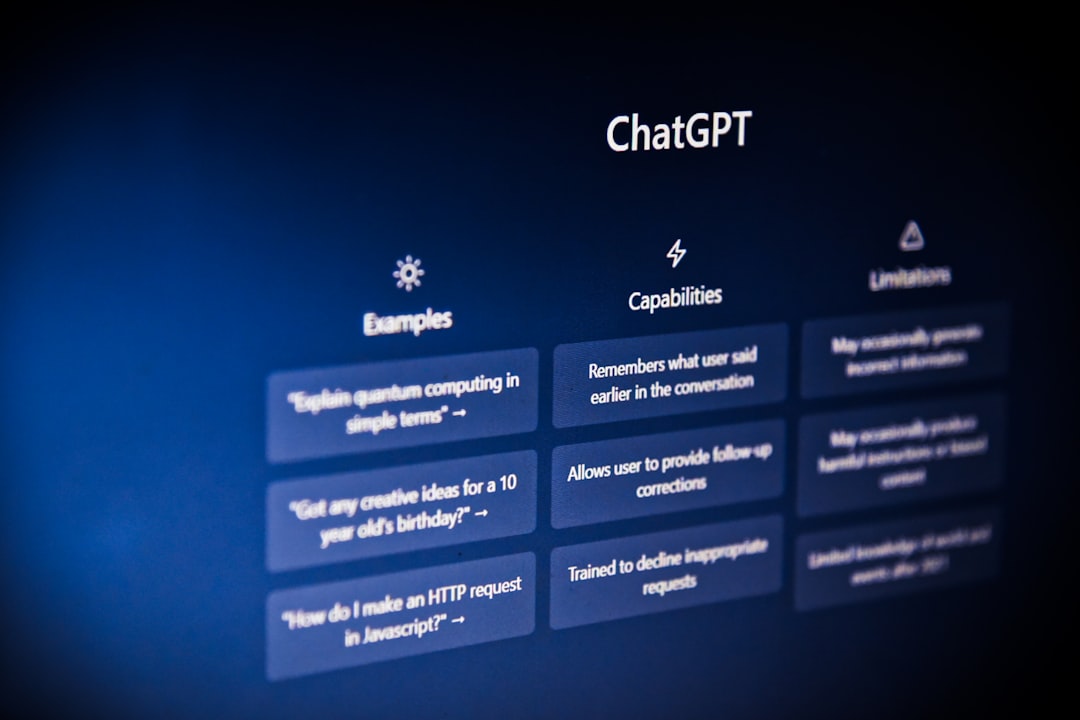
ChatGPT Free and Plus differ less in whether you can get answers at all, and more in whether you can stay in flow. When you need sustained iterations, file access, and high availability, the gap becomes obvious. Plus is positioned as enhanced access, yet caps can still apply based on system conditions and demand. Treat “paid” as “more runway,” not “zero limits.”
“Plus subscriptions may include usage limits such as message caps, especially during high demand. These limits may vary based on system conditions.” — OpenAI Help Center, “What is ChatGPT Plus?”
The practical consequence is simple. You can’t build a single-app workflow that assumes unlimited messages, endless features, and guaranteed model access. If your deliverable requires steady back-and-forth refinement, Plus is usually worth it because it raises the odds you finish without waiting. Meanwhile, if your day consists mostly of reading long material and writing rough drafts, you might get better daily stability from a no-cost helper inside Google Workspace or Microsoft 365. The “friction tax” is just lower there.
Don’t shop by model name alone. Shop by the bottleneck you feel every week: caps mid-session, quality drift across revisions, or copy-paste overhead. Plus, if you want a sharper sense of when editing software beats “more chat,” the writing-focused angle in this Grammarly review for 2026 helps frame the difference between drafting and polishing.
For the official plan language you can rely on, start with ChatGPT pricing and the Plus help article: What is ChatGPT Plus?.
What happens when you hit usage limits, and how do you build a no-drama workflow?
When you hit usage limits, you’ll usually see throttling, reduced feature access, or a forced step-down to a lighter experience until a reset window passes. The fix isn’t a hidden setting. The fix is a system that expects limits and routes tasks so one cap doesn’t freeze your entire project.
I find the most efficient solution is batching work into short, finishable segments. Instead of one long chat marathon, treat each segment as a handoff: intake summary, draft v1, constrained edit pass, and final send-ready polish. Each segment ends with a saved artifact in your docs so you can resume elsewhere without losing context. Here’s a concrete structure you can copy into your process notes:
- Intake lane: put long emails, PDFs, transcripts, and meeting notes into the app that reads long context with minimal friction.
- Drafting lane: generate the doc where it will live (Docs, Word, or your CMS), keeping each draft pass short enough to finish before caps matter.
- Precision lane: use a reasoning-focused tier for the last pass: constraints, claim checks, tone lock, and “don’t invent” rules.
For example, imagine a real estate photography studio handling about 25 shoots per week. They were spending way too long on client updates and delivery instructions. They shifted intake emails and shoot notes into a free suite-native helper for draft replies. Then, they used a paid reasoning model only for the final accuracy pass on delivery details and invoice language. Their average email time dropped from about 18 minutes to 6 minutes. They saved roughly 5 hours per week while keeping “send” risk under control.
Vendor limits vary by model and server condition, not by your expectations. Google’s own quota documentation makes the point that limits can be model-specific. This is the exact same reality you’ll see across platforms: Gemini API quota documentation.
Which free alternative fits best: Google-native, Microsoft-native, or writing-first?
The best free alternative is simply the one that removes steps from your routine, not the one that wins a screenshot comparison. A Google-native helper is usually the best fit when your sources live in Gmail and Drive, and your drafts live in Docs. A Microsoft-native assistant fits best when your day runs through Outlook, Word, Teams, and Edge. Besides that, a writing-first app fits best when you mainly need clarity, tone control, and shorter copy polish.
Let’s look at two practical examples. Imagine you run a Shopify store and you’re building a seasonal campaign. You’ll get way more value from drafting subject lines, segments, and follow-ups inside your existing docs setup than from chasing a premium model name. Your bottleneck is iteration speed and coordination. Pairing zero-cost drafting with a solid email platform is often the smarter play. This list of free email marketing services in 2026 is a better starting point than plan-hopping. Also, if you create YouTube tutorials, a free assistant can draft an outline and first script fast, leaving your finishing step for narration quality. This guide to free AI text-to-speech for YouTube covers what to look for when audio consistency matters.
Direct recommendation: If you’re solo or a small shop, I highly recommend starting with a two-app setup. Use one free suite-native helper for volume work, plus one paid tier for the precision lane. You’ll feel the difference within a week because you stop wasting paid messages on routine intake and drafting.
Skip writing-first free assistants if your biggest pain is handling long documents and citations inside your workspace. They can be great for voice and clarity, though they often add copy-paste steps that recreate the exact friction you were trying to remove.
Free vs Plus vs Business: side-by-side comparison and what to choose
A side-by-side comparison only helps when you weigh workflow friction, governance needs, and your own risk tolerance. Price matters, yet the hidden cost is rework. You pay that tax when you can’t finish a task in one sitting or when you can’t standardize how you produce client-facing outputs.
| Option | Cost | Best for | Where it falls short |
|---|---|---|---|
| ChatGPT Free | $0 | Light drafting, quick Q&A, casual summaries | Tighter caps and tool limits; availability varies by region and demand |
| ChatGPT Plus | Paid (see official pricing) | Sustained iteration, broader tools, higher limits for staying in flow | Caps can still apply; value depends on weekly volume and task type |
| Business plan | Per user (varies) | Teams needing admin controls, centralized billing, and access management | Costs scale fast; you’re paying for governance more than raw output |
| Google-native free assistant | $0 | Docs/Drive/Gmail-centered intake and drafting with fewer steps | Feature availability varies by account and region; writing “feel” differs |
| Microsoft-native free assistant | $0 | Research-to-draft workflows tied to Office apps and Edge browsing | Experience differs by app and document type; limits vary by account |
| Writing-first free assistant | $0 | Clarity, tone, and shorter copy polish | Caps can be tight; less suite-native convenience for long-document work |
Disqualifier: Skip Business plans when you don’t need centralized billing, offboarding, admin controls, or policy enforcement. If you aren’t onboarding people, managing permissions, or dealing with formal compliance, the governance premium rarely pays you back.
What really matters here is documenting your lanes so you don’t improvise under deadline pressure. Write down which tasks belong to your free suite-native app, which belong to your paid reasoning tier, and which belong to your editing software. If you keep swapping mid-task, you’ll burn more time than you save.
For vendor-owned facts that change, always link to the pages that define the plans. Use OpenAI’s pricing page for tier definitions and the Plus help article for the official description of access and limits.
Pick one free suite-native helper for intake and drafting, keep one premium tier for your precision lane, and write down the handoff rules before your next deadline. Then, run the setup for one week and track three numbers: how often you hit caps mid-session, how often you redo work due to drift, and how often you copy-paste between apps. Keep the setup that lowers all three.
FAQ
Is o3 available on the free plan in 2026?
Availability depends on your tier, region, and what your account’s model picker shows at that exact moment. Use OpenAI’s official plan pages for the baseline, then confirm inside your own account instead of assuming a model is automatically included.
What’s the fastest way to avoid hitting caps mid-project?
Split your work into intake, drafting, and precision edits. Use a free app for long-document intake and rough drafts, then reserve paid reasoning for the last constrained pass so you don’t burn your quota early.
When should you keep Plus instead of switching to free tools?
Keep Plus when you need sustained iteration and a higher chance of finishing a task without waiting, especially for client-facing work where small mistakes cost money. Free options make more sense for routine drafting where speed and convenience matter more than strict control.
Do Team or Business plans make sense for a solo creator?
Usually not, because you’re paying a premium for admin controls, governance, and centralized billing. A solo setup is typically better served by one paid tier for precision work plus one free suite-native helper for volume.
What should you do when plan details or limits seem to change week to week?
Treat vendor documentation as the absolute source of truth and re-check it when your workflow breaks. OpenAI’s pricing pages and Google’s quota documentation are far better references than screenshots or third-party summaries.