Free Photoshop Alternative 2026: Workflow Scorecard Guide
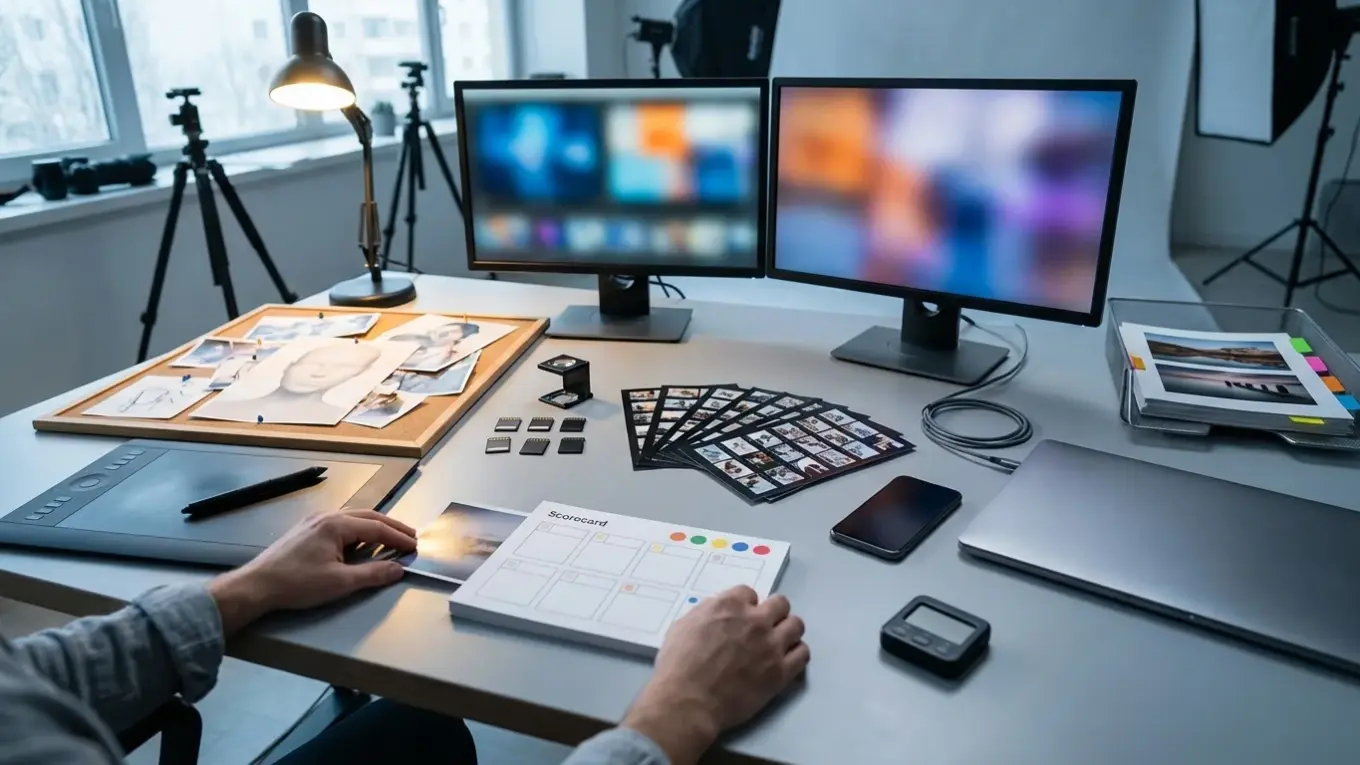
Best free Photoshop alternative in 2026: pick by workflow, not by hype. If you build composites, you want a layer-based editor. If you process lots of photos, you want a RAW developer. If you mainly need quick PSD review and exports, a browser editor is the bridge. A simple scorecard—PSD fidelity, non-destructive edits, export formats, and offline needs—keeps you from burning time on the wrong “free” choice.
Picture a product launch week. You’ve got a stack of photos to clean up, a designer sends a layered file, and your site needs fast-loading images that still look sharp. The subscription you used to rely on isn’t happening, so you grab the first “free Photoshop alternative” you see, open the PSD, and everything looks fine… at first.
Then you notice the text is flattened, masks behave weirdly, and exports don’t match your storefront’s color. I’ve learned the hard way that the fix usually isn’t hunting for a perfect clone. It’s choosing one tool that fits what you do most days, and only adding a second specialist when a real edge case keeps showing up.
That’s why the scorecard matters: it makes the decision repeatable, even if a free tier shifts, ads get more aggressive, or an update changes file compatibility.
What a “Free Photoshop Alternative” Really Means in 2026
A free Photoshop alternative is any option that replaces part of Photoshop’s job without costing money, not one app that does everything well. In practice, what holds up is splitting the work into three lanes: pixel editing with layers, photo development for RAW files, and quick handoff for common formats or PSD review.
That definition matters because “free” covers a few very different realities. Some apps are open-source and truly free. Others are freemium, where core edits don’t cost anything but certain exports, advanced features, or AI credits hit limits. And some are ad-supported web editors that stay free as long as you accept online-only editing and occasional friction. If you don’t label which type you’re picking, you can end up rebuilding your workflow around a constraint you never agreed to.
Set expectations using the same standards you’d use for a paid editor: file safety, repeatability, and edit longevity. If you’ll re-open seasonal promos weeks later, you need non-destructive edits and dependable layer handling. Meanwhile, if you’re shipping images to a storefront, you need modern export formats and predictable resizing. For format trade-offs and when to use each type, MDN’s overview is a solid baseline: Image file type and format guide.
One rule I like: judge tools by whether they pass your “must-haves,” not by whether the UI feels familiar. Familiarity fades fast; broken handoffs and rework don’t.
How You Choose the Right Category: Layer Editor vs RAW Processor vs Web Editor
Choose the category based on your dominant task: layers for compositing, RAW processing for batches, or a web editor for quick access and sharing. Get the category right and the quirks become manageable; get it wrong and you’ll fight the tool every day.
Pick a layer-based desktop editor when your work includes cutouts, masks, blend modes, cloning, and multi-step edits you’ll revisit. This is the “product on a new background with a soft shadow” kind of job. You’ll also want offline support if you handle unreleased products, client files under NDA, or you simply don’t want to upload originals.
Go with a RAW processor when volume is the choke point. If you shoot in RAW and need consistent exposure, white balance, and color across 30–300 photos, a dedicated RAW tool beats forcing a layer editor to do batch work it wasn’t designed for. You’ll save time on repetitive adjustments, plus you’ll export cleaner starting points for the few images that need heavier retouching.
Use a browser editor when the constraint is collaboration or PSD “triage.” Web tools can be great for opening a layered file to check content, make light tweaks, or export a quick proof. Then again, skip web-only tools when privacy or offline reliability is a hard requirement, or when large files make performance unpredictable.
Example workflow (e-commerce): You batch-correct a RAW set in darktable, export high-quality JPEG masters for your catalog, then take five hero shots into GIMP for detailed cleanup and compositing. If your designer sends a PSD for an ad banner, you open it in Photopea to confirm layers and export a quick draft, then finish the pixel-level fixes offline.
Do you actually need one app to do all of that? Most teams don’t—though they often try anyway.
What “PSD Compatibility” and Non-Destructive Editing Look Like in Real Life
PSD compatibility ranges from “opens a flattened image” to “keeps layers, masks, and text editable,” and that range decides whether switching tools saves time or creates rework. Non-destructive editing means you can change your mind later without degrading quality or rebuilding steps from scratch.
Start by treating PSD as an interchange format, not a promise. Many tools import basic pixel layers fine, but drop smart objects, complex layer effects, adjustment layers, or mask behavior. Your file can look correct at a glance and still fail the moment you try to tweak a headline or refine an edge. If you want a neutral description of what PSD files can contain, this overview helps set expectations: PSD (Photoshop Document) file format. Use a handoff checklist that matches how teams accidentally break files:
- Layer fidelity: order, visibility, blending modes, and opacity behave as expected after import.
- Masks: masks import cleanly, and edge refinement tools don’t destroy the original cutout.
- Text editability: text stays editable when you need to change a price or headline.
- Effects and smart features: layer styles and smart objects don’t silently flatten critical parts.
Non-destructive editing also shows up in exports. If you’ll resize assets for Shopify, Amazon, or Etsy, you need a master you can re-export without quality drift. Keep a “source of truth” file with layers intact, then export web-ready versions from that master. For deeper guidance on format choices for storefront speed and quality, a focused explainer like PNG, JPEG, WebP use cases can help you standardize decisions across your team.
One more practical point: if your workflow involves frequent price changes or seasonal copy updates, editable text layers aren’t a “nice to have.” They’re the difference between a two-minute update and rebuilding a banner from scratch.
A 2026 Workflow Scorecard You Can Reuse (Plus a 15-Minute Test)
A workflow scorecard is a repeatable way to evaluate free Photoshop alternatives using the same tasks and pass/fail checks. The fastest approach is testing two finalists with the same three mini-projects instead of reading ten “best of” lists. Run this 15-minute test on any contender before you commit:
- Create a simple 3-layer composite: background, subject cutout, and a soft shadow layer. Add one mask and one blend mode. Pass if you can refine the mask edge and toggle changes without flattening.
- Do a close-up retouch: remove five small defects (dust spots, scratches, stray hairs) using healing or cloning. Pass if texture still looks believable at 200% zoom.
- Export for web: create a PNG (for transparency), a JPEG (for photos), and a modern format when available (WebP, AVIF). Pass if you can control quality and dimensions without odd color shifts.
Pay special attention to export formats because they affect site speed and ad performance. Google’s WebP documentation makes the core value plain:
“WebP lossless images are 26% smaller in size compared to PNGs.” — Google Developers, WebP
Still, don’t force WebP everywhere. You need a master format, a fallback strategy, and a clear rule for transparency; otherwise you’ll “save” file size and lose consistency. If you want a deeper performance-oriented comparison for 2026 storefronts, AVIF vs WebP for 2026 adds practical context without turning it into a format war.
Imagine you’re exporting the same hero image for your product page, an email header, and a paid social ad. If the editor can’t reliably reproduce color and sharpness across those exports, the “free” part stops feeling like a win.
Free Photoshop Alternatives Scorecard: Side-by-Side Comparison
This comparison focuses on the options you’ll see most often and the criteria that decide whether they’ll fit your workflow. Choose based on your decision lens: offline reliability, PSD handoff, RAW batch speed, or quick design output.
Direct recommendation: If your priority is Photoshop-style layer work with offline reliability, start with GIMP and add a RAW processor like darktable only when you shoot RAW. If PSD handoff drives your week, keep a browser PSD editor as a bridge and avoid treating PSD as your long-term master format outside Photoshop.
Skip this when: Skip web-only editors if you can’t upload originals, your internet is unstable, or you regularly work with very large files that become slow in a browser. Also skip illustration-first tools if you need consistent photo retouching more than brush and painting workflows.
| Option | Best for | Strengths | Trade-offs to accept | Offline |
|---|---|---|---|---|
| GIMP | Layer-based photo editing and compositing | Strong layers/masks; detailed selections; works offline | Different workflow than Photoshop; PSD fidelity varies by file complexity | Yes |
| Photopea | Opening and editing PSDs in a browser | Convenient PSD-oriented workflow; quick handoff and exports | Online-only; performance depends on browser and file size; free tier often ad-supported | No |
| Krita | Illustration and painting with layers | Excellent brush workflow; strong layer-centric creation | Not a Photoshop-style photo pipeline; PSD handoff can be limited | Yes |
| darktable | RAW batches and consistent catalog adjustments | Designed for photo development and batch exports | Not a layer editor; you’ll still need a pixel editor for composites | Yes |
| Pixlr | Quick web edits and lightweight fixes | Fast for simple tasks; accessible from anywhere | Freemium limits vary; PSD support isn’t the focus | No |
| Snapseed | Mobile retouching on iOS/Android | Good edits on the go; non-destructive-style adjustment stack | No traditional layers; not a PSD workflow | Yes (mobile) |
If you’re choosing for a team, don’t ignore process. A shared scorecard keeps everyone aligned on what “compatible” means, because “it opened” isn’t the same as “it stayed editable.” The same idea shows up in other tool categories, and the testing mindset transfers well; this pick, test, score approach is a good example of decision discipline that holds up when features shift.
How to Build a Two-Tool Setup That Stays Stable All Year
A stable setup uses one primary editor and one specialist tool, with clear rules for what goes where. You’ll move faster when you stop expecting one free app to cover layers, RAW, PSD handoff, templates, and AI cleanup equally well.
Pick your primary tool based on the work you do most often. For store owners, that’s usually a layer editor for background cleanup, compositing, and consistent cutouts—or a RAW processor if you shoot and batch-correct large volumes. Add the second tool only to cover a specific failure mode: PSD handoff, mobile edits, or quick web-based collaboration. Here are two practical setups that stay predictable:
- Product photo pipeline: darktable for RAW batches and consistent color, plus GIMP for the handful of images that need cloning, masks, and composites.
- Design handoff pipeline: a browser PSD editor for reviewing and exporting layered files, plus an offline layer editor for the edits you need to archive and revisit.
Keep exports disciplined. Save an editable master for anything you’ll reuse (holiday promos, evergreen banners, product hero images). Then export web versions as derivatives with the same naming rules every time. If your team struggles with consistency, a quick filter like an AI tool finder can help narrow candidates by constraints, and your scorecard can do the final selection.
AI features fit best as a controlled step, not the center of the workflow. Use automated background removal and object removal for cleanup, then zoom in and approve edges before publishing. Besides, if you need a practical shortcut for consistent round thumbnails without opening a full editor, this guide on circle cropping online in 2026 can save time on repetitive catalog tasks.
One honest trade-off: the more tools you add, the more you need rules. Without them, people export from the “wrong” app, lose edit history, and the team ends up chasing mismatched versions.
Pick one primary editor using the scorecard, then run the 15-minute test on your top two options using a real file from your workflow. Lock in your “master file” rule, define what counts as acceptable PSD import for your team, and standardize exports (PNG for transparency, JPEG for photos, WebP when it fits). Do that once and you’ll stop re-learning the same lessons every launch.
Affiliate note: Some links may be affiliate links. If you buy through them, it can support the site at no extra cost to you.
FAQ
What’s the best free Photoshop alternative for layers and masks?
GIMP is a strong free choice for layer-based compositing, masking, and detailed selections, especially if you need offline editing. Pair it with a RAW processor if your workflow includes RAW batches.
Which free option is best when you need to open PSD files?
A browser PSD editor like Photopea often works well for PSD review and light edits, but results vary by file complexity. Treat PSD as a handoff format and confirm that text, masks, and effects stay editable before you rely on it.
Can you replace Photoshop with only one free app?
Sometimes, but many workflows are faster with two tools: a layer editor for pixel work and a RAW processor for batch photo development. That split reduces compromises and keeps exports more consistent.
What image format should you export for faster websites in 2026?
WebP is a common choice for smaller files with good quality, and AVIF can be more efficient when your platform supports it. Keep a high-quality master (PNG or high-quality JPEG) so you can re-export without degrading the source.
When should you skip web-based editors?
Skip web-only editors if you can’t upload originals, you need offline reliability, or your files are large enough to become slow in a browser. Desktop tools are usually safer for sensitive images and repeatable production work.