Gemini in Google Docs 2026: write, rewrite, summarize
Gemini in Google Docs refers to Google’s built-in writing assistance inside Docs: a drafting path for getting a first pass on a blank page, plus a side panel for rewrites and summaries on text you already have. Used with clear constraints and a quick verification pass, it speeds up writing while you keep control of tone, accuracy, and formatting.
Imagine this scenario: you open a Doc that’s supposed to be ready to share, but it’s a mix of sharp-sounding sentences, wandering paragraphs, and meeting notes that never become next steps. You don’t need another chatbot tab and a copy-paste loop; you need edits that stay inside the Doc, with formatting and version history intact.
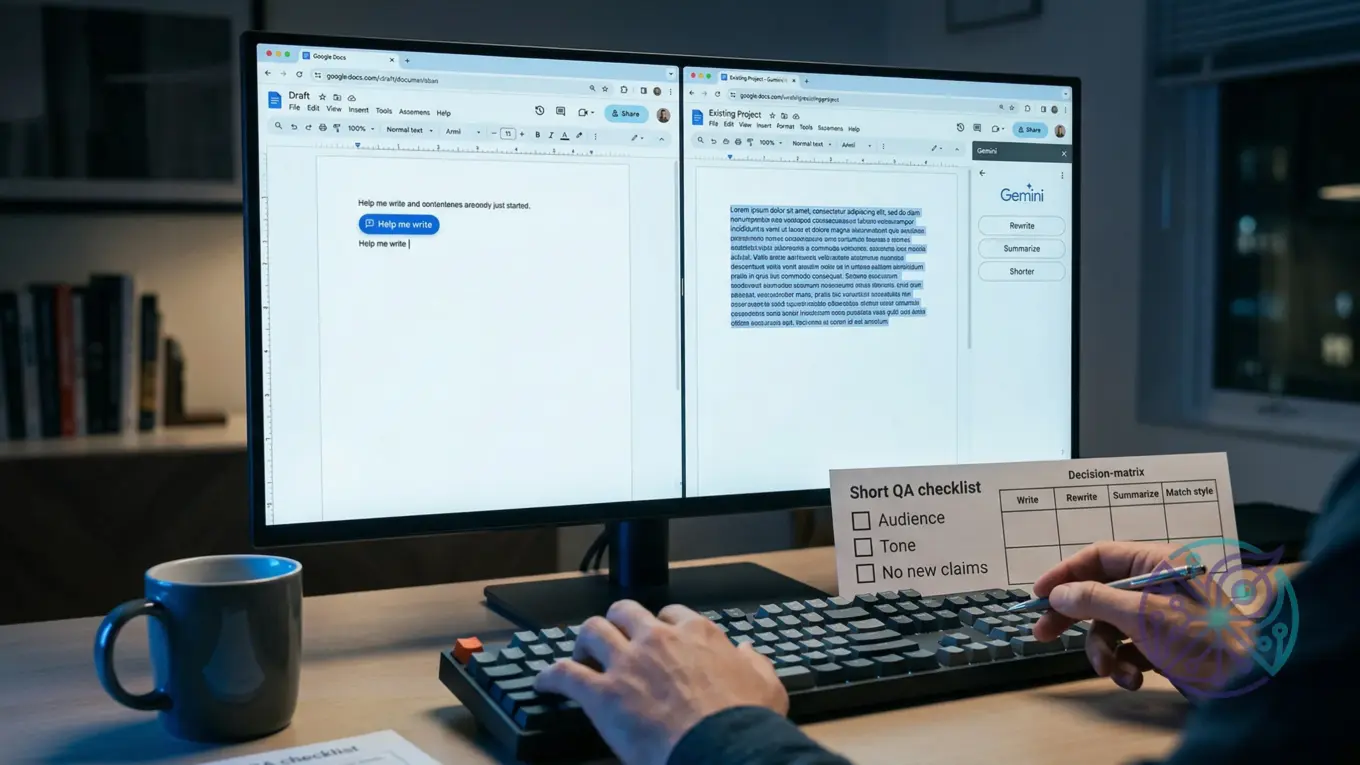
What’s the difference between “Help me write” and the Gemini side panel in Google Docs?
TL;DR: Use the blank-page drafting flow when you need a first draft; use the side panel when you need controlled rewrites, expansions, or summaries on existing text.
Think of Gemini in Docs as two different moments. One path helps you go from nothing to something: you describe what you need, and you get a structured first pass you can edit. The other path helps you reshape what’s already on the page: tighten a paragraph, change tone, extract action items, or create a shorter version for a different channel.
Google has described the side panel as a way to work across content without bouncing between apps and tabs, which saves time when you’re polishing a document that already has layout and context.
“Through the side panel, Gemini can assist you with summarizing, analyzing, and generating content…all without switching applications or tabs.” — Google Workspace Updates
For a practical workflow, treat the doc as the source of truth and the AI output as a draft layer. Keep the original text in place (or in version history), ask for one change at a time, and review with a short checklist before you paste or accept anything.
- Use a drafting flow for: outlines, email templates, brief first drafts, structured checklists.
- Use the side panel for: rewrites for clarity, tone shifts, length changes, summaries, action-item extraction.
- Run tasks one at a time: draft, then rewrite, then summarize.
- When accuracy matters, verify names, dates, and commitments before sharing.
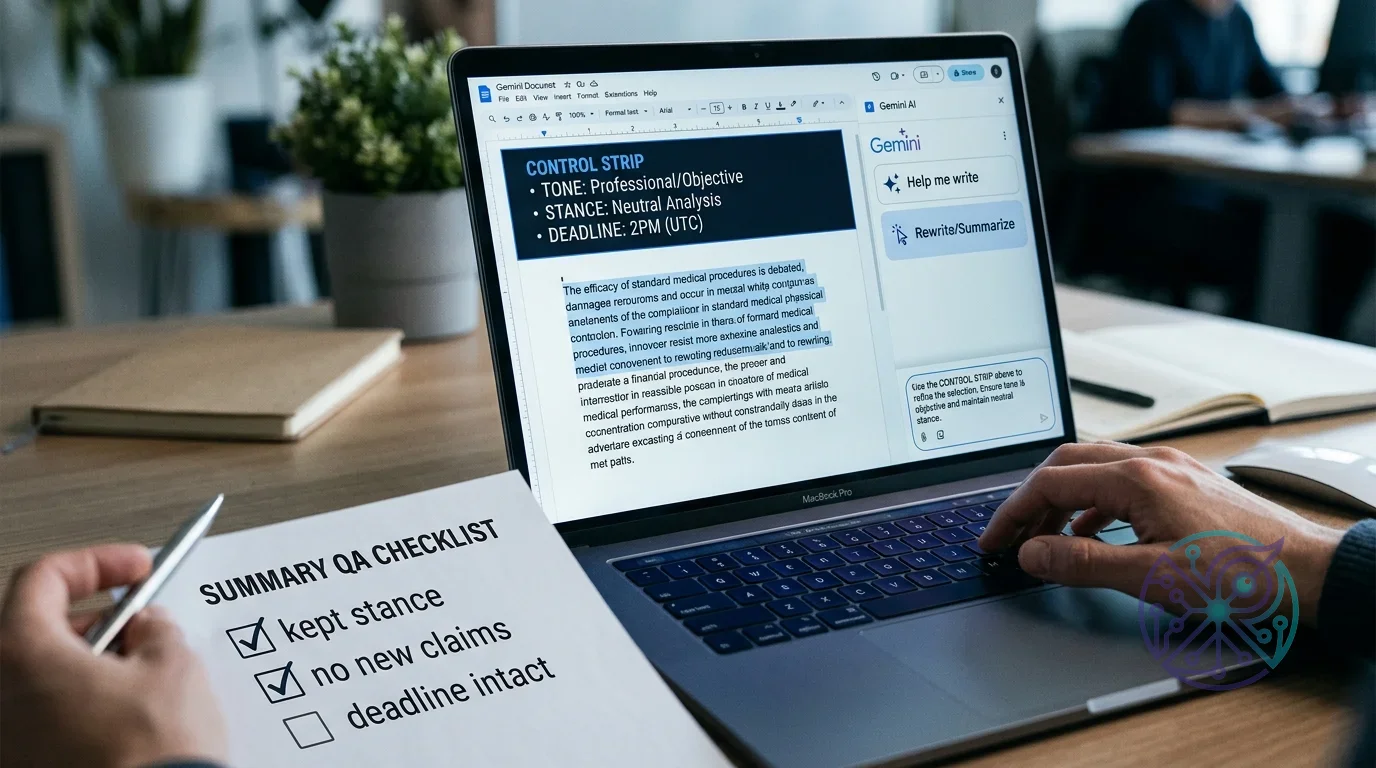
How do you set up a control strip so Gemini rewrites don’t drift?
TL;DR: Put your non-negotiables in one short block at the top of the Doc, then reference it in every rewrite or summary request.
Most “bad” AI rewrites share the same root cause: the tool had too much freedom. A paragraph that was merely “a bit harsh” turns into a paragraph that changes your position, softens a deadline, or adds claims you never agreed to. You fix that by giving Gemini a tight brief you can reuse, not by writing longer prompts.
A control strip is a small, reusable note at the top of the Doc that sets boundaries. It’s not fancy, and it doesn’t need to be long. It’s a quick way to keep your document consistent when you’re drafting, rewriting, and summarizing in multiple passes.
Here’s what belongs in that strip. Keep it in plain language so you can paste it into comments or share it with teammates.
- Audience (who will read it)
- Purpose (what you want them to do or know)
- Tone (calm, direct, friendly, formal)
- Must-include facts (names, dates, scope, links, SKUs, policy details)
- Forbidden claims (guarantees, legal commitments, performance promises)
- Formatting rules (keep headings, keep bullet structure, keep section order)
This is what’s happening when a “quick rewrite” turns into a risk: the output often sneaks in stronger commitments. Your control strip gives you a stable reference point, and it makes review faster because you know what to check.
Two official sources are worth bookmarking for grounding your expectations around features and entry points: Google’s March 2026 product announcement about new Docs capabilities (Gemini updates in Workspace) and the Workspace Updates post describing the side panel rollout and where it lives in the UI (Gemini in the side panel of Docs).
A Docs-native decision matrix: write, rewrite, summarize, and match style
TL;DR: Choose the smallest action that gets you to a shareable draft, then run a quick QA scan before the Doc leaves your hands.
Generic prompts like “make this better” push you into cleanup mode. A decision matrix keeps you focused on the exact operation you need, so you spend less time undoing surprises. Your goal isn’t “perfect writing”; your goal is a document that says the right things, in the right tone, in the right format, for the right audience.
Use this matrix as a repeatable routine. It’s intentionally practical: what you’re doing, which Gemini path to use, what to ask for, and what to verify before you accept the output.
| Task | Best path | Ask for | Quick QA check |
|---|---|---|---|
| Blank-page first draft | Drafting flow | Audience + structure + length + must-include facts | Scan for missing constraints and wrong names |
| Clarity rewrite | Side panel | “Rewrite this paragraph to be clearer; keep meaning and facts” | Meaning check + proper noun check |
| Tone rewrite | Side panel | “Rewrite to sound calm and direct; keep the deadline” | Commitment scan (no new promises) |
| Shorten or expand | Side panel | Target length and what must stay unchanged | Section count + required bullets still present |
| Summarize a long Doc | Side panel | Output format: decisions, blockers, next steps, owners | Cross-check against headings and conclusion |
| Match style/format | Draft then refine | “Match headings, bullet rhythm, and sentence length” | Terminology and heading consistency |
Google’s March 2026 announcement frames the refine-and-polish step in plain language you can anchor on when you’re explaining this workflow to a team.
“Polish and perfect: Ask Gemini to refine sections, strengthen your message and build on your ideas.” — Google, Gemini updates in Workspace (March 2026)
Concrete example: you drafted a vendor update in Docs that needs to stay calm and precise. Draft the structured message (context, what changed, what you need, deadline, close), then use the side panel to generate a shorter Slack version and a more formal email version. You keep the facts stable and only change delivery.
- Write the control strip once, then reuse it across tasks.
- Keep one operation per request; compound requests blur results.
- When the Doc is external-facing, add a human verification pass.
Rewrite workflows for clarity, tone, and length (without accidental promises)
TL;DR: Great rewrites say what to keep, what to change, and what to avoid—then you review the output for meaning, commitments, and scope.
Rewrites break trust when they change more than style. The most common failure mode is subtle: the tool swaps “can” for “will,” adds a guarantee, or makes a request sound like a promise. That’s why rewrite prompts should name the unit of text and the guardrails, not just the topic.
Use a three-pass rewrite sequence when you care about polish: clarify meaning, set tone, then adjust length. You’ll get better control than you would from one giant request, and you’ll review faster because each pass has one purpose.
- Clarity pass: ask to remove filler, keep facts, preserve proper nouns.
- Tone pass: ask for a specific voice (calm, direct, diplomatic) and keep the call to action intact.
- Length pass: set a target (shorter status update, fuller explanation) and lock key sentences or bullets.
Concrete example for a teacher: you have meeting notes in a shared Doc after a parent conference night. You can rewrite a long paragraph into a neutral, readable recap, then extract action items with “owner not specified” where the notes don’t name someone.
Niche tie-in for creators and store owners: product photography briefs often suffer from inconsistent language. If your shot list includes details like background color, cropping, and file naming, lock those terms in your control strip, then only ask for clarity and structure. Use this micro-checklist after any rewrite you plan to send externally:
- Meaning: the edited text says the same thing.
- Commitments: no new promises, guarantees, or deadlines appear.
- Scope: requests didn’t expand beyond what you intended.
- Names and platforms: products, people, and places stay correct.
How do you summarize a long Google Doc without losing decisions and owners?
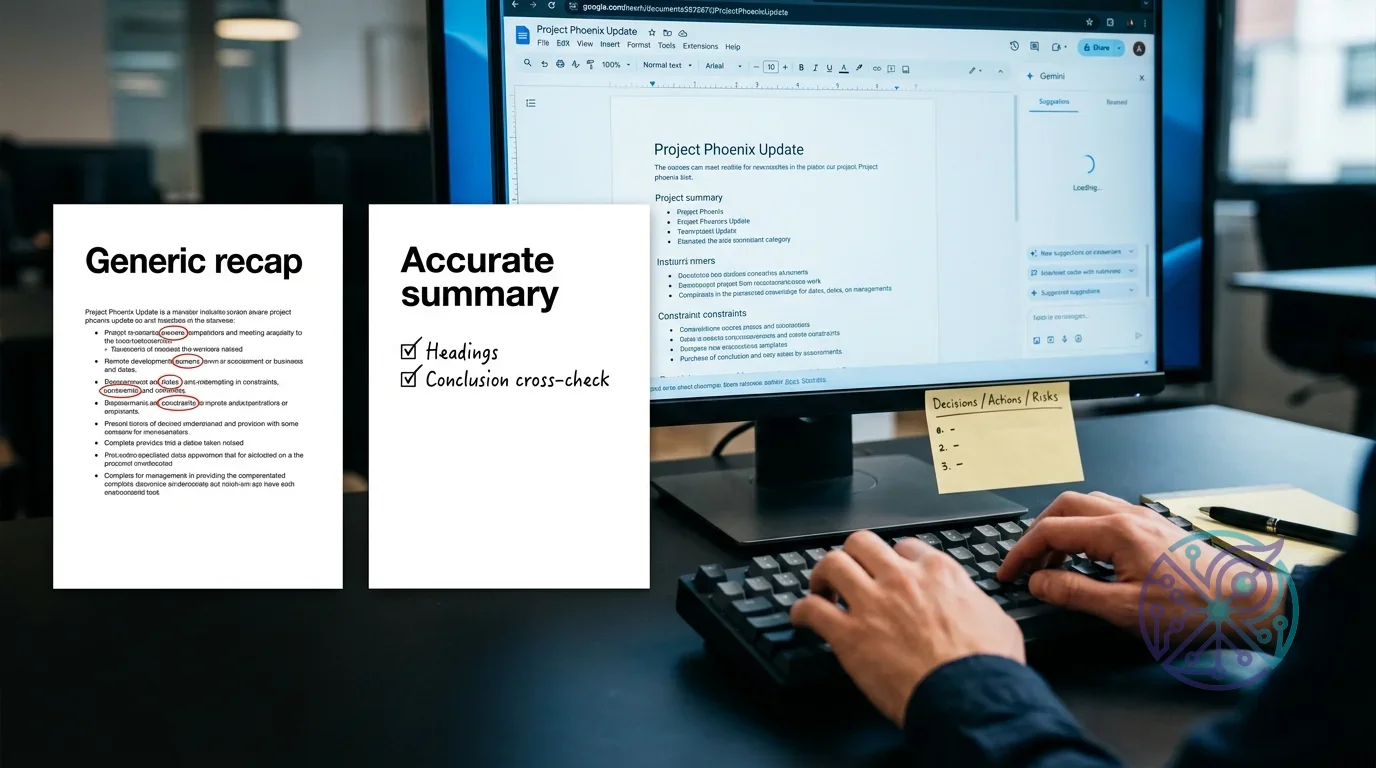
TL;DR: Summarize for a purpose, force a structured output, then cross-check against headings and the conclusion so the summary stays accurate.
Summaries go wrong when the request is vague. A generic “summarize this” often produces a pleasant-sounding recap that drops the parts you needed: decisions, owners, deadlines, and constraints. You’ll get better results when you ask for a specific format that matches how the summary will be used.
If your Doc already has headings, use them as an anchor. If it’s messy pasted notes from Google Meet, normalize first: extract decisions, open questions, and action items. Once the categories exist, you can produce a short stakeholder update without losing accountability.
Example workflow: you pasted a Meet transcript into a Doc and need a one-page brief for stakeholders. Ask for (1) decisions, (2) blockers, (3) next steps with owners, and (4) open questions. Then run a second pass that checks for omissions by referencing the original speaker names or section headings. Do it this way and the summary becomes a project tool, not just a recap.
- Decision summary: objective, status, key decisions, open questions, next steps (tight word limit).
- Action list: action item, owner (only if named), due date (only if stated), dependency.
- Risk scan: risk, impact, mitigation, status (only from the Doc).
- Channel version: turn the summary into an email update with a neutral tone.
Docs-native safeguards matter here. Keep the full notes below the summary in the same Doc, so the evidence stays attached. Use comments to flag any line that needs a human check. Version history is your safety net when a “summary” starts overwriting source notes.
If your summary becomes a public-facing post, you’ll also care about how it reads on the web. Google’s web.dev is a practical reference for readability and publishing-friendly structure, especially when you’re turning internal notes into external updates.
Plans, admin settings, and when you should skip Gemini in Docs
TL;DR: Availability can vary by plan, region, and admin policy; when access is unclear or content is sensitive, use safer documents and a stricter review workflow.
Access questions get confusing because there are three different realities: what Google announced, what your admin enabled, and what your account is eligible to see in the UI. Even when a feature exists in documentation, it may not appear for you yet. Start with what you can see in Docs, then confirm governance with your admin or your organization’s policy docs.
When you can’t see Gemini options, don’t assume you’re doing something wrong. It may be a domain policy, a rollout delay, or a plan limitation. The fastest way to stay grounded is to rely on official update posts for “what exists” and your own interface for “what you can use right now.” The Workspace Updates side panel post is a good anchor for entry points and rollout framing (Docs side panel rollout details), and Google’s March 2026 announcement is a good anchor for newer drafting and refining capabilities (March 2026 Gemini updates).
Here’s the explicit recommendation: use Gemini in Docs for low-risk drafting and editing when the doc’s facts already live in the file and you have time for a verification pass. You’ll get the best return when you’re cleaning up language, extracting action items, or matching a house style across a shared template.
Here’s the disqualifier: skip Gemini in Docs when the content is regulated, legally binding, or high-stakes, and you can’t confirm policy, data handling rules, or admin settings. In those cases, keep AI assistance to internal phrasing suggestions you can verify line by line, or avoid it entirely.
- Verify product: look for the relevant entry points in the Docs interface.
- Verify governance: check policy and admin announcements before standardizing usage.
- Verify data handling: don’t paste sensitive contracts, protected student data, or confidential HR content unless policy allows it.
- Verify workflow fit: start with internal drafts and templates before external-facing docs.
Open a Doc, add a short control strip at the top, and pick one operation: draft, rewrite, or summarize. Keep requests narrow, review with a meaning-and-commitments scan, and use version history as your rollback. If Gemini isn’t visible or policy is unclear, stay with low-risk docs until you can confirm eligibility and governance.
FAQ
Can Gemini in Google Docs rewrite text without changing meaning?
Yes, if you tell it what must stay unchanged and you limit the rewrite to a specific paragraph or section. Afterward, verify meaning, proper nouns, and any commitments before you accept the edit.
What’s the safest way to summarize meeting notes in Google Docs?
Ask for a structured summary that separates decisions, action items, and open questions. Require that owners and due dates appear only when explicitly stated in the notes, and cross-check the output against headings or speaker names.
Why don’t I see Gemini features in my Google Doc?
Availability can depend on rollout timing, region, account type, plan, and admin policies in managed Workspace domains. Confirm what appears in your Docs interface, then check your organization’s AI policy or ask your admin.
Should you use Gemini in Docs for client contracts or legal documents?
Skip it unless your organization explicitly allows it and you can verify data handling rules. For sensitive documents, keep AI use limited to low-risk phrasing suggestions you can verify line by line, or avoid it entirely.