
What Is Grammarly? AI Writing Assistant Setup Guide
Grammarly is an AI writing assistant that checks your text as you type and suggests fixes for grammar, spelling, clarity, and tone. You write or paste a draft, then accept or ignore suggestions based on what you’re trying to say. The result is cleaner writing with fewer “oops” moments in emails, docs, and posts.
You hit send on a client email in Gmail and notice a missing word two seconds later. Annoying. Or you publish a LinkedIn post and realize the tone sounds sharper than you meant. Those aren’t huge mistakes, but they still cost trust and time because you end up doing damage control instead of moving on.
I’ve tested dozens of tools like this, and what works for me is treating them like a pre-send filter—not a replacement for your judgment. You’ll write faster when you stop rereading the same paragraph five times, and you’ll catch the tiny slips that make a solid message look rushed.
Disclosure: Some links on AI Tool Sage may be affiliate links, which can support the site at no extra cost to you.
What is Grammarly, and what does it do while you write?
Grammarly is a writing companion that scans what you type and flags issues like grammar mistakes, misspellings, clunky phrasing, and tone mismatches. It doesn’t “grade” you; it offers options, and you choose what to keep. That choice matters because your voice and context still come from you.
In practice, you’ll see a mix of quick fixes (a missing article, a repeated word) plus higher-level edits (a long sentence split into two, a softer alternative to a blunt phrase). Imagine you have a sales follow-up that reads, “I need this by Friday.” A tone suggestion might shift it to, “Could you share this by Friday?” Same deadline, less friction.
From my experience helping clients with this, the real payoff shows up after a few weeks: you start spotting your own habits. I’ve watched founders cut back on hedging, and I’ve seen support teams tone down tense phrasing that used to trigger escalations. The assistant is handy, but the behavior change is the win.
If you’re comparing options in this category, you’ll also want to understand how rewriting differs from paraphrasing. The breakdown in paraphrasing vs writing assistance helps you pick the right kind of help for your workflow.
How does an AI writing assistant make suggestions (without writing for you)?
An AI writing assistant makes suggestions by analyzing patterns in language and predicting what reads as correct, clear, or consistent with a chosen tone. It checks grammar rules, but it also leans on machine learning signals learned from large volumes of text. That’s why it can catch things that aren’t “wrong,” yet still feel off to a reader.
You’ll get better results when you give it clean context. Finish a rough draft first, then do a pass for clarity and tone. If you edit while you’re still thinking, you’ll lose momentum, and you’ll accept changes you don’t mean.
One mistake I keep seeing is people treating the top suggestion as the “right” one. It’s not. If you’re writing a legal memo, a marketing tagline, or a personal statement, some “clarity” edits can flatten meaning. When I first tried this on a brand voice guide, the results surprised me: the grammar improved, yet the brand sounded generic until I started rejecting safe-but-bland rewrites and rewriting the line myself.
If you want a simple technical definition of the underlying field, Google’s developer documentation provides background on language-focused machine learning terms, including NLP, at Google’s machine learning glossary. You don’t need to study it, but it explains why these tools sometimes miss nuance.
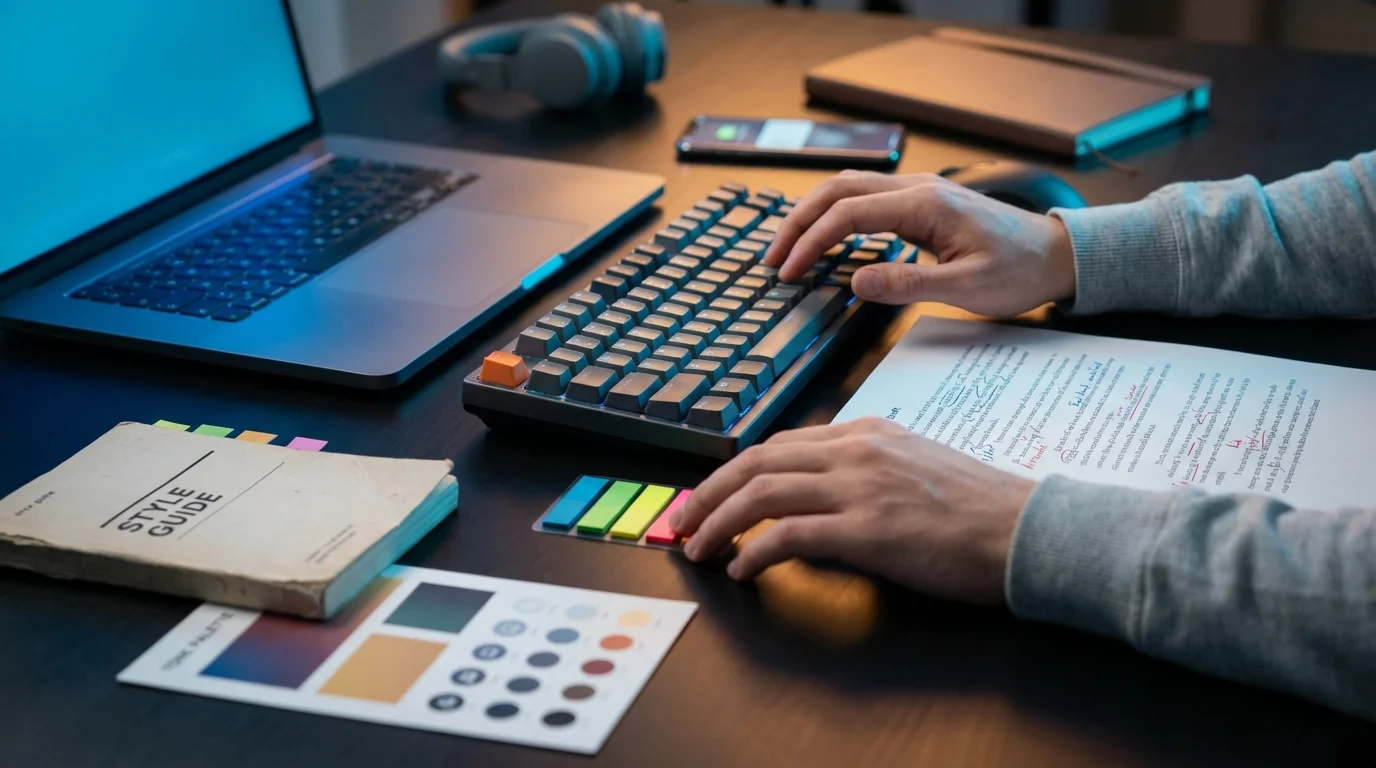
How do you set up Grammarly across Gmail, Google Docs, Word, and Slack?
Setting Grammarly up means choosing the places where you write most, then installing the matching option: browser extension, desktop app, or document integration. Once it’s enabled, you’ll see suggestions inside your editor instead of copying text into a separate checker. Less friction. Better follow-through.
For a browser-based workflow, start with the extension. Grammarly’s own support documentation spells out what the extension covers across major browsers:
“Grammarly offers a browser extension for Chrome, Safari, Firefox, and Edge.” — Grammarly Support (browser extension user guide)
After installation, test it in one place you write daily, like Gmail. Type a short note, accept one suggestion, and confirm it doesn’t mess with your normal formatting. If it feels noisy, tweak the settings first, then add more apps.
Then expand to the spots where mistakes actually cost you. For example, a client-facing Google Doc, a proposal in Word, or internal messages in Slack. I usually recommend you pick two at first—email plus docs—because going everywhere at once can feel intrusive. A few minutes later, you’ve got a setup that catches obvious issues without slowing you down.
What can you use Grammarly for, and what should you ignore?
You can use Grammarly for three high-value jobs: catching errors, cleaning up readability, and calibrating tone. Error catching is the obvious one, but the time savings often come from readability and tone because those issues cause rewrites, follow-up messages, and long comment threads. If your goal is speed, focus on clarity suggestions that shorten sentences and remove ambiguity.
Concrete example: you’re a freelancer sending a project update. “I’ll deliver the draft soon” sounds polite, yet it’s still vague. A rewrite that adds a date or a measurable milestone (“I’ll send the first draft by Wednesday 3 PM ET”) prevents the next email. Another example: a support reply that says “You did it wrong” can be softened to “That setting can cause this issue; here’s the fix,” which keeps the customer engaged instead of defensive.
Still, you should ignore anything that changes meaning, legal intent, or brand voice. What most guides won’t tell you—and I’ve learned this the hard way—is that tone suggestions can nudge you toward overly neutral language when you need confident positioning. When you see a suggestion that swaps a precise term for a fuzzy one, keep your term and rewrite the sentence yourself.
Mini case study: A 12-person marketing agency producing 40 client deliverables per week had a recurring problem: rushed proofreading led to inconsistent voice and a steady stream of “tiny fix” revision requests. They standardized one style checklist (spelling, punctuation, tone) and required a final pass with a writing assistant before submission. Over 90 days, they cut minor revision requests by 18% and saved about 6 hours per week across the team, mostly from fewer back-and-forth edits.

What are Grammarly’s limitations for writers and teams?
Grammarly’s limitations come down to context, not raw power. It can’t fully understand your product strategy, your legal risk, or the emotional history behind a customer thread. It also can’t judge creativity the way a good editor can, since creative choices often break “best practice” rules on purpose.
Expect occasional mismatches with specialized terms, especially in medicine, law, and software. The tool may flag jargon as “complex” even though it’s the correct term for your audience. Meanwhile, it can miss mistakes inside tables, PDFs, or unusual web editors where integrations don’t behave consistently.
I’ll be honest: it doesn’t always work perfectly, but you can make it dependable by setting boundaries. Use it to catch grammar and clarity issues, then do a human pass for meaning and intent. If you’re in a regulated space, pair it with a strict review process; AI suggestions should never be the final authority on compliance language.
If your bigger workflow includes drafting with a chatbot, keep the roles separate: generate elsewhere, then refine with a writing assistant. If you need that comparison, AI Tool Sage also covers the broader landscape in best AI chatbots in 2026, which helps you avoid buying the wrong category of tool.
How much does Grammarly cost in 2026, and which plan fits your needs?
Grammarly pricing depends on whether you need advanced rewrites, tone controls, and plagiarism checks, or whether basic corrections are enough. Start with the free tier if your main pain is typos and obvious grammar mistakes. Upgrade only when the extra suggestions save you more time than the subscription costs. That’s the whole game. Grammarly’s own pricing support page provides a clear reference point for annual billing:
“Annual subscription: $144 USD/member/year ($12 USD average cost per member/month)” — Grammarly Support (pricing details)
That number gives you a baseline to compare against alternatives, especially if you’re paying for multiple seats. Use a simple decision table to pick quickly:
| Plan | Cost range | Core value | Best for |
|---|---|---|---|
| Free | $0 | Grammar, spelling, punctuation basics | Casual writing, light email cleanup |
| Paid individual | Typically lower with annual billing | Clarity, tone, rewrites, stronger suggestions | Creators, students, client-facing pros |
| Team/organization | Per-seat pricing varies | Admin controls, consistency features | Agencies, support teams, sales orgs |
If you’re stuck between two options, reduce the decision to your main bottleneck. If tone issues cost you relationships, pay for tone controls. If you only need a typo net, keep it free. Then again, if you’re shopping across multiple AI tools, a quick AI tool finder can narrow the shortlist based on what you write and where you write it.
Pick one place where mistakes hurt you most—usually Gmail or Google Docs—install Grammarly there, and run it only after your draft is done so you keep your flow. Accept fixes that improve clarity without changing meaning, reject anything that dulls your voice, and track whether you save real time over two weeks before paying for a plan.

FAQ
Does Grammarly replace a human editor?
No. It can catch common mistakes and improve clarity, but it can’t reliably judge intent, nuance, or creative choices the way an experienced editor can.
Can Grammarly write an article from scratch?
Its main job is improving text you already wrote. Some plans include generative features, but you’ll usually get the best results when you bring your own draft and use suggestions to polish it.
Is Grammarly safe to use for confidential work?
Treat any writing assistant as a tool that may process your text, and follow your organization’s privacy rules. For sensitive or regulated documents, keep a human review step and avoid pasting content you aren’t allowed to share.
Why do Grammarly suggestions sometimes feel wrong for my industry?
Specialized terminology and strict style rules can look “complex” to general-purpose models. Keep your precise terms, and use the assistant mainly for grammar and clarity around the jargon.