What Is Otter.ai? Journalist Workflow Guide (2026, Timestamps)
what is otter ai? It’s a cloud-based, AI-powered speech-to-text service that transcribes audio in real time, labels speakers, and creates searchable notes and summaries for meetings, interviews, and lectures. If you report on deadlines, it helps you capture quotes faster while keeping timestamps you can replay to verify accuracy.
You’re on a deadline, the interview is moving fast, and you can’t risk missing a quote—or misquoting one. A tool like Otter.ai can help, but only if you set it up like a working notepad, not a “perfect transcript” button. Think of it this way: your job is accuracy; the tool’s job is speed and structure.
Disclosure: this site may earn affiliate commissions if you choose to buy a tool we mention. That doesn’t change what you should pick for your workflow.
What is otter ai and how does it work?
Otter.ai works like an AI knowledge assistant: it listens, converts speech-to-text, then layers organization on top (speakers, timestamps, highlights, summaries, and search). The value isn’t just the raw transcript—it’s how it turns messy audio into something you can scan, cite, and collaborate on.
Here’s the workflow. First, Otter captures audio from a live mic or a meeting platform and produces real-time transcription with timestamps. Next, it tries to separate voices through speaker identification, which relates to speaker diarization—the task of segmenting audio by “who spoke when.” Diarization is never perfect: overlapping talk, crosstalk, and background noise increase errors, so treat speaker labels as best-effort and confirm key attributions during editing.
For journalists, the features that matter are the ones that make verification faster. You’ll care less about flashy summaries and more about finding the exact moment a source said something, confirming the speaker, and exporting clean quotes with context. Here are practical otter ai features to prioritize when you evaluate it for reporting:
- Real-time transcription with timestamps you can click back to in playback
- Speaker identification (diarization-style labeling) for multi-person interviews
- Automated summaries and action items for fast recall (useful, not authoritative)
- Search across conversations for names, topics, and repeated claims
- Collaboration tools: highlights, comments, shared folders/workspaces
- Meeting assistant behavior (OtterPilot) to join and capture scheduled calls
How to use Otter.ai for meetings and interviews?
How to use otter ai well comes down to two moves: connect it to where your conversations happen, and build a repeatable “verify-then-extract” routine after the call. Used this way, it saves time while keeping you in control of accuracy.
Start with setup for attended meetings and interviews. If you rely on Zoom integration, Microsoft Teams, or Google Meet, configure Otter to capture the audio source you trust most (the meeting audio, not a laptop speaker in a noisy room). For scheduled calls, OtterPilot can auto-attend and generate notes without you touching the app, which helps when you’re juggling back-to-back interviews. The trade-off is real: auto-attendance can surprise participants if you don’t disclose it clearly, and some workplaces block “AI notetaker” bots for policy reasons.
Use this checklist to build a journalist-grade workflow that holds up under deadline pressure:
- Before the call: confirm consent rules for recording/transcription in your jurisdiction and your outlet’s policy; tell the source what tool you’re using.
- Audio hygiene: use headphones, ask speakers to pause between questions, and avoid typing over the mic—noise becomes text errors.
- Speaker discipline: ask each person to say their name once at the start; it helps diarization and later attribution.
- During the call: drop quick highlights on moments you might quote; it beats hunting later.
- After the call: replay any quote you plan to publish and correct names, numbers, and near-homophones.
- Export: pull a cleaned excerpt with surrounding context, not a single line that can be misread.
If you want automated coverage, connect your calendar so OtterPilot can find meetings. The exact UI changes over time, but the steps stay consistent across platforms: (1) open settings, (2) find calendar or integrations, (3) choose Google or Microsoft, (4) sign in and grant calendar access, (5) pick which calendars to sync, and (6) enable auto-join for the meetings you want captured. For Google, that authorization typically uses Google’s OAuth flow; for Microsoft, it follows a similar consent pattern through Microsoft identity. If you also use your phone for quick in-person notes, compare this approach with native dictation options in our guide to Android voice dictation apps, since on-device dictation can be a safer choice for sensitive contexts.
Is Otter.ai free? Pricing and plan comparison
Is otter ai free? Yes—there’s a free Basic plan, and it’s enough to test accuracy and workflow fit. The catch is that transcription minutes and per-conversation limits can force awkward resets right when an interview gets interesting.
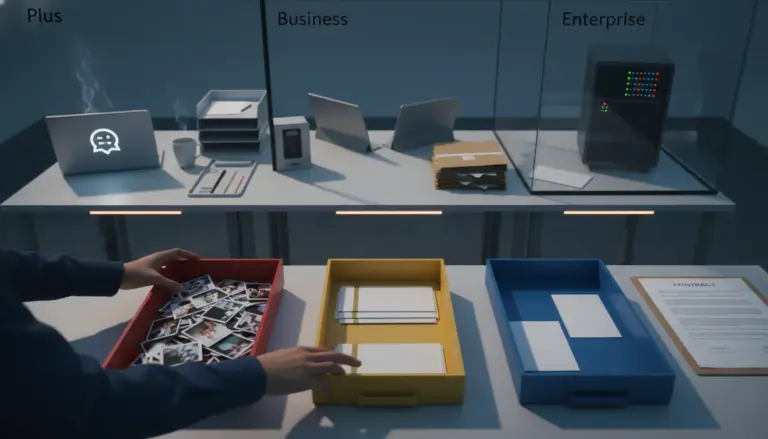
A practical way to decide is to map your month. Count how many interviews and meetings you’ll transcribe, estimate average duration, then compare that to the plan caps. Also pay attention to per-conversation limits: a two-hour roundtable can break a plan even if you still have monthly minutes left. Below is a snapshot based on Otter’s published plan limits.
| Plan | Monthly transcription minutes | Max per conversation | File imports for transcription | Best fit |
|---|---|---|---|---|
| Basic (Free) | 300 minutes | 30 minutes | 3 lifetime per user | Testing, light personal use |
| Pro | 1,200 minutes | 90 minutes | 10 monthly per user | Regular interviews, small teams |
| Business | 6,000 minutes | 4 hours | Unlimited | Newsrooms, heavy meeting volume |
Here’s a simple disqualifier: if most of your interviews run longer than 30 minutes, the free tier will frustrate you quickly. Another disqualifier: if you need guaranteed verbatim accuracy for legal or medical contexts, treat AI transcription as a draft and consider human transcription instead. If you want a broader “plan discipline” mindset for paying for AI tools without surprises, you’ll get value from our breakdown of which ChatGPT plan fits which workflow—the same budgeting logic applies to minute-capped transcription services.
Is Otter.ai safe? Privacy and data security explained
Otter ai safety depends on your risk profile: the sensitivity of what you’re recording, who controls the workspace, and what permissions you grant through integrations. If you handle confidential sources, evaluate safety before convenience.
To evaluate it clearly, separate three questions people often mix together: (1) “Does the company sell my data?”, (2) “Can someone else access my transcript?”, and (3) “What happens when I connect third-party accounts?” Otter’s policies include public privacy notices you can read directly, including its California notice and terms. For example, its California Resident Privacy Notice states:
“We do not rent, sell, or share Personal Information with nonaffiliated companies for their direct marketing uses … unless we have your permission.” — Otter.ai, Inc., California Resident Privacy Notice
That addresses a common concern, including the “does Otter sell my data?” question you’ll see raised in Reddit threads. Still, “not selling” doesn’t automatically mean “no risk.” Cloud transcription means recordings and transcripts exist on a server, not only on your device, and integrations can expand exposure if your account is compromised or if you share notes into the wrong workspace. Read the primary docs yourself: California Resident Privacy Notice and Terms of Service are a good starting point for understanding data handling and responsibility boundaries.
Use this safety checklist before you record anything high-stakes:
- Consent: tell participants you’re recording/transcribing; get explicit permission when required.
- Workspace ownership: avoid mixing personal reporting with an employer-controlled workspace unless you intend to hand over the data.
- Access control: limit sharing; remove collaborators who don’t need the full transcript.
- Integration discipline: only connect the calendars and meeting platforms you need; revoke access you no longer use.
- Verification: never publish a quote you haven’t replayed from the source audio.
- Threat model: for sensitive sources, consider offline recording plus later selective transcription.
Otter’s own terms also warn you not to treat AI output as authoritative. This matters for safety in a newsroom setting because errors can become reputational harm if they slip into copy:
“Outputs may be inaccurate, inappropriate, false, incomplete, or biased.” — Otter.ai, Inc., Terms of Service
Otter.ai vs ChatGPT: Which is better for transcription?
Otter.ai and ChatGPT solve different problems: Otter is built for continuous capture, timestamps, and meeting workflows; ChatGPT is built for reasoning over text once you already have it. If your goal is transcription you can audit against audio, Otter’s meeting-first design usually fits better.
ChatGPT can still play a role after transcription. Example workflow: export a cleaned transcript, then ask a writing assistant to summarize, extract themes, or draft follow-up questions. Where people get burned is trying to use a general chatbot as a recording system. You lose meeting attendance automation, you may lose structured speaker labeling, and you’ll add extra steps just to keep the audio-to-text chain organized. Otter is your capture layer; a chatbot can be your analysis layer.
On the speech-to-text side, one widely referenced baseline is OpenAI Whisper, which has become a common point of comparison for transcription quality and language coverage. You don’t need “the best model” in the abstract—you need a tool that fits your constraints: real-time transcription, diarization-style speaker separation, and integrations that match your newsroom stack. Use this table as a decision lens rather than a promise of quality:
| Decision criterion | Otter.ai | ChatGPT (as a workflow) |
|---|---|---|
| Real-time transcription | Designed for it (live captions, live notes) | Not the core use; depends on how you source the transcript |
| Speaker labeling / diarization | Built-in speaker identification (still needs review) | Depends on transcript quality you provide |
| Meeting automation (OtterPilot) | Purpose-built for joining scheduled meetings | Requires custom setup; not a default behavior |
| Post-interview analysis | Good for summaries and search | Strong for synthesis, outlines, and drafting from text |
| Best “journalist safeguard” | Timestamps + playback make verification faster | Great after you’ve verified the transcript against audio |
Direct recommendation: pick Otter.ai when you need an AI notetaker that can reliably capture meetings, attach timestamps, and keep everything searchable across interviews. Skip it when your work involves sensitive sources where cloud storage or auto-joining bots create unacceptable risk; in that case, record locally and transcribe only what you must.
Otter ai review: the journalist’s workflow masterclass (accuracy, noise, and OtterPilot)
An otter ai review that’s useful for journalists doesn’t grade the tool on “perfect accuracy.” It grades it on how quickly you can get from audio to a verified quote with context, even when the recording isn’t clean.
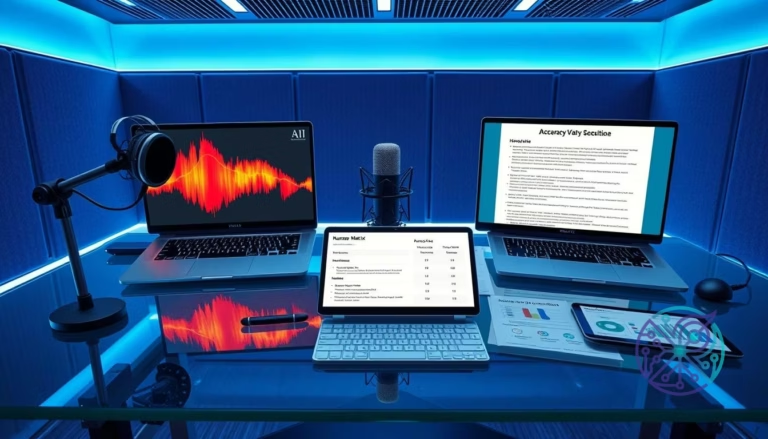
Start with accuracy realities. Noise, accents, and overlapping talk degrade speech-to-text and diarization, no matter which vendor you use. Your best defense is process: record the cleanest audio you can, then run a fast verification loop that focuses on the lines that can hurt you—names, numbers, dates, and direct quotes. A practical standard in a newsroom is to spot-check the first two minutes of each speaker, then check every quote you plan to publish by replaying the audio at the timestamp. That’s how you turn “good enough” AI text into publishable material.
OtterPilot is the feature competitors often oversimplify. Treat it like an automated producer: it can join Zoom, Microsoft Teams, and Google Meet calls on schedule, capture transcripts, and drop summaries so your notes exist even if you’re multitasking. The trade-offs are real: some organizations block meeting bots, some guests react badly if they weren’t warned, and auto-joining can create clutter if your calendar includes invites you don’t intend to cover. Use this decision checklist to manage OtterPilot like a professional tool:
- Use OtterPilot when you run recurring editorial meetings, stakeholder briefings, or press calls where consent is routine and minutes matter.
- Don’t use OtterPilot when you’re interviewing a vulnerable source, covering sensitive internal comms, or joining a meeting where recording is contested.
- Configure it like a newsroom: sync only the calendars you need, and disable auto-join for personal events and low-value invites.
- Build a correction pass: edit speaker names and key terms right after the call while context is fresh.
If you want a quick way to sanity-check whether you should even be looking at a meeting bot versus a simpler recorder, use a short quiz like an AI tool finder to match your constraints (privacy, duration, collaboration) to the right category before you spend time migrating workflows.
One habit makes a visible difference: create a “quote bank” inside each transcript. Highlight two to five candidate lines, add a one-sentence note about why each matters, then export only after you replay and confirm. That keeps your draft clean and reduces the chance you’ll lift an unverified line into a story.
Action to take next: sign up on the free tier, run one real interview end-to-end (setup → record → highlight → verify → export), then decide if the 30-minute cap blocks your work. If it does, move up a tier only after you’ve mapped your monthly minutes and confirmed your privacy requirements against the linked policies.
Does Otter.ai work offline?
Otter.ai is primarily cloud-based, so plan on needing an internet connection for full transcription and syncing. If you need an offline-first workflow for sensitive reporting, record locally and transcribe later in a controlled environment.
What’s the difference between speaker identification and diarization?
Speaker identification labels speakers (often by name after you assign it), while diarization focuses on segmenting audio by who spoke when. In practice, diarization-like behavior helps group turns in an interview, but you still need to verify attribution for publishable quotes.
Can I use Otter.ai for captions on videos?
Yes, you can use transcripts as a starting point for captions, but you’ll still need a timing and formatting pass for broadcast-quality subtitles. Always review for names, jargon, and any words that could create reputational or legal risk.
Will the free plan be enough for a weekly podcast?
It depends on episode length: the free plan’s 30-minute per-conversation limit can be the blocker even before you hit monthly minutes. If your recordings routinely exceed that, you’ll either need split sessions or a higher plan.
What’s the safest way to use AI transcription with sensitive sources?
Use explicit consent, minimize integrations, restrict sharing, and avoid auto-joining bots. When risk is high, keep the recording local and only transcribe the sections you truly need, then delete anything you shouldn’t retain.
Otter.ai is most useful when you treat it as your capture-and-verification system: set up the right meeting audio source, use highlights during the call, and replay every publishable quote from the timestamp before you export. If the Basic plan’s 30-minute cap and minute limits fit your month and your privacy needs match the linked policies, it’s a practical starting point; if not, adjust your workflow or tier before you rely on it for high-stakes reporting.